The Agent
The agent is the reason Prism is not just an editor with a 3D view. It reads your files, runs commands, drives the solvers, and writes results back — inside the workspace you attached, under permissions you set.
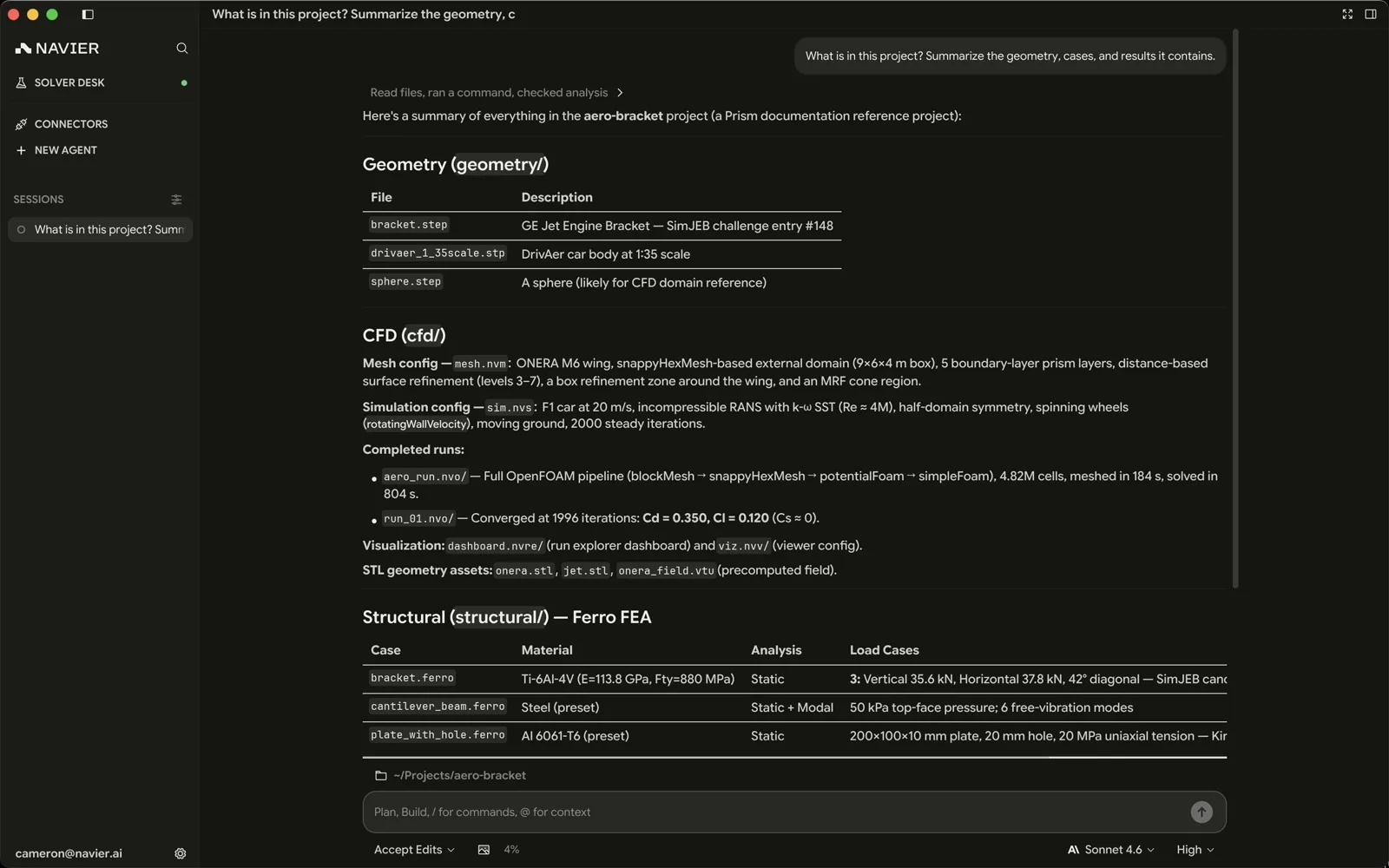
The composer
Everything you send starts in the composer at the bottom of the chat column.

| Element | What it does |
|---|---|
| Workspace chip | The attached folder. Click to change it while the thread is new, or to copy its path once it is under way. |
| Model picker | Which model answers. Your default comes from Settings → Agent. |
| Effort picker | How much reasoning the model spends before answering. |
| Permission chip | The current permission mode. ⇧Tab cycles it. |
| Branch chip | On a git workspace, the branch — and the worktree control. |
| Background work | Appears while the thread has solves, sub-agents, or commands running. Click it for the detail. |
Press Enter to send. Paste an image with ⌘V and it is attached to the message — useful for a screenshot of a drawing, a plot, or a spec page.
Mentions and slash commands
Typing @ opens a picker for files in the workspace, so you can point the
agent at something precisely instead of describing it. Typing / opens the
command popup. Both are navigated with the arrow keys, and Enter
accepts.
Reading a transcript
The transcript is not just prose — it is a record of what the agent actually did.
- Response text streams in as the model produces it.
- Thinking rows show reasoning, when the model produces any. The glyph style is configurable in Settings → Agent.
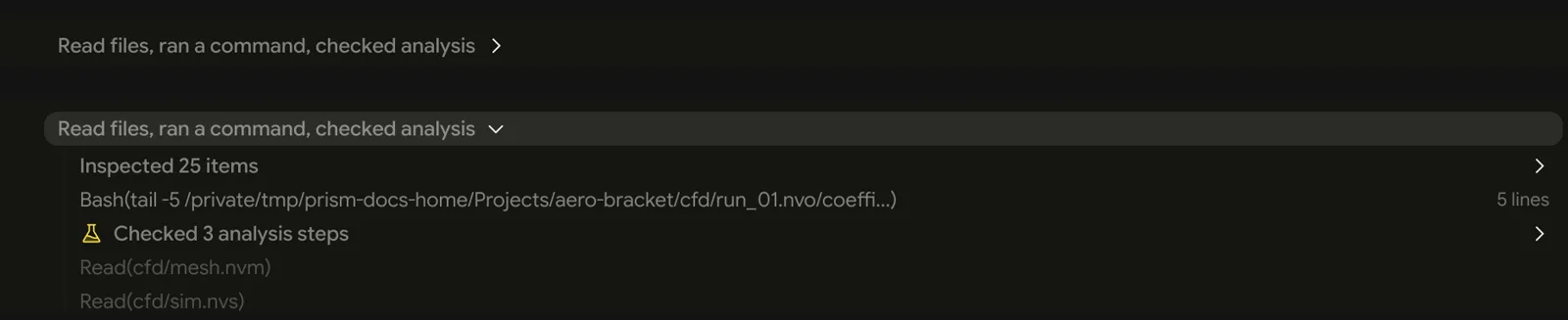
- Tool rows show each call: what it ran and what came back. Click a row to expand it.
- Sub-agent cards show the model that actually ran. When a tier or default selected the model, the card keeps that context beside the resolved model.
- Approval cards appear inline when the agent needs permission.
- Question cards appear above the composer when the agent asks you something, and the agent waits for the answer. Pick an option, type in the composer, or skip — see Shortcuts.
By default a run of uninterrupted tool activity collapses behind a single expandable summary row, so a long sequence of reads does not bury the narrative. Turn that off in Settings → Agent if you would rather see every row inline.
Interrupting
- ⌃C always stops a streaming response.
- Esc does too, if you enable it in Settings → Agent. It is off by default so that Esc keeps its normal meaning everywhere else.
Interrupting stops the turn. Anything already written to disk stays written — interrupting is not an undo. Check the diff after an interrupt.
Math in chat
Prism renders inline math with $...$ or \(...\) and display math with
$$...$$ or \[...\]. Math inside code spans and fenced code blocks stays
literal, as do escaped dollar signs. This rendering applies to agent chat;
other Markdown surfaces are unchanged.
What the agent can do
Beyond reading, editing, and running commands, the agent has tools specific to Prism and to engineering work.
Driving the app
| Tool | What it does |
|---|---|
prism_open_file | Opens a file in the editor and reveals it |
prism_switch_tab | Focuses an already-open tab |
prism_open_diff | Opens the diff view |
prism_set_right_pane | Picks which view the right pane shows |
prism_set_camera | Points a 3D viewer at a named or explicit view |
prism_export_view | Saves a 3D viewer as a PNG and returns its path |
prism_ask_user_question | Asks you a question on a card above the composer |
This is why the app moves while the agent works: when it says "here's the result", it opens the result.
CAD and geometry
| Tool | What it does |
|---|---|
prism_cad_run | Runs a build123d Python script to build geometry |
prism_cad_viewer_state | Describes a CAD viewer and its selection |
prism_cad_viewer_selection | Reads what you have selected, entity by entity |
prism_cad_viewer_list | Lists the model's bodies, or one body's faces |
prism_cad_viewer_query | Resolves references such as #face=17 |
The run returns build metadata such as volume, bounds, and mesh counts, plus
the tail of anything the script printed. Its outputs land in .prism/hw/ as
model.py, model.step, and model.msh, which the next run replaces — pass a
name to write <name>.py / .step / .msh instead, so a variant you want to
keep or compare survives later runs. To review shape and placement, open the
result in the 3D viewer; prism_set_camera and prism_export_view can help
inspect and capture it.
The four prism_cad_viewer_* tools read the CAD viewer rather than change it —
which is what lets you select a face and say "what is this?" without describing
it. You get a body's name and bounds, a face's surface kind, area, centroid and
normal, and an edge's length and end points. They read the viewer you are
looking at, so they keep working after the agent opens another file, and unlike
prism_set_camera they neither move nor reveal a tab. Entity ids are per-load: #face=17 is good until that file is
reloaded, so quote it back in the same breath, not tomorrow. Prism does not provide automated
interference or DFM checks.
Analysis
| Tool | What it does |
|---|---|
prism_ferro_schema | The exact current schema for a Ferro case |
prism_ferro_create / prism_ferro_author | Creates and writes a structural case |
prism_ferro_set_mesh | Attaches a mesh to the case |
prism_ferro_run | Solves it |
prism_ferro_results / prism_ferro_summary | Reads results and summarizes them |
Solvers
prism_solver_status, prism_solver_daemon, prism_solver_install,
prism_solver_run, prism_solver_runs, prism_solver_logs, and
prism_solver_cancel drive navier-solverd — see
Solver Desk.
Solver runs and Ferro solves are background tasks: completion arrives as a notification in the thread, so the agent never polls for a result.
Everything a thread has running in the background shares one card. A button above the composer summarises it — 2 subagents, 1 running · 3 solver tasks, 2 running · 1 background command — and clicking it opens the card above the composer, with a section for each kind of work present:
- SUBAGENTS — the sub-agents this thread has dispatched, and any that are
waiting on an approval. A row whose child has reported usage carries it
beside the title —
8.2k in · 3.1k out · 47%, abbreviated further in a narrow pane — where the percentage is the child's context against its own model's input budget, and turns amber past 80%. Hover it for the exact counts and the model they were measured on. The figures come from the child's last finished response, so a child mid-turn shows what it had spent at the previous one; a percentage Prism cannot work out is left off, and a child that has reported nothing yet carries no figures at all. Its header carries stop while children are still running — which interrupts those children and leaves the parent turn going — and clear finished once any have finished. A child whose stop could not be delivered says so in a banner on the thread, because its work may carry on; the composer's Stop is still the one that ends the turn. - SOLVER TASKS — solver-daemon runs with their state, queue reason, and elapsed time; Ferro solves with their phase and progress; runtimes still installing; submits still in flight. A run Prism has accepted but has no status for yet reads Accepted · awaiting status. If a finished result could not be handed back to its agent, the header offers retry handoff.
- COMMANDS — the shell commands the agent left running, each with the last line of its output. One that has finished while its result is still reaching the agent is counted in a footer instead. If the thread loses its link to the agent service the rows go with it: reopen the thread to reconnect, and stop still cancels the commands running locally.
Each row that can be ended on its own carries a stop: it cancels that solver run, Ferro solve, or command and reports the cancellation to the agent as that task's outcome, leaving the turn and the rest of the work running.
Deliverables
PowerPoint decks come from the presentations skill, which writes a slide plan
and runs its own generator over it.
Everything else
The agent also has the ordinary set: file read/write/edit, shell, search
(ripgrep and fd ship with Prism), and the embedded browser — see
Agent control for what
it can do there. Plugins add more — see Plugins & MCP.
Models and effort
Settings → Agent controls which models appear in the picker, which one is the default, and the default reasoning effort.
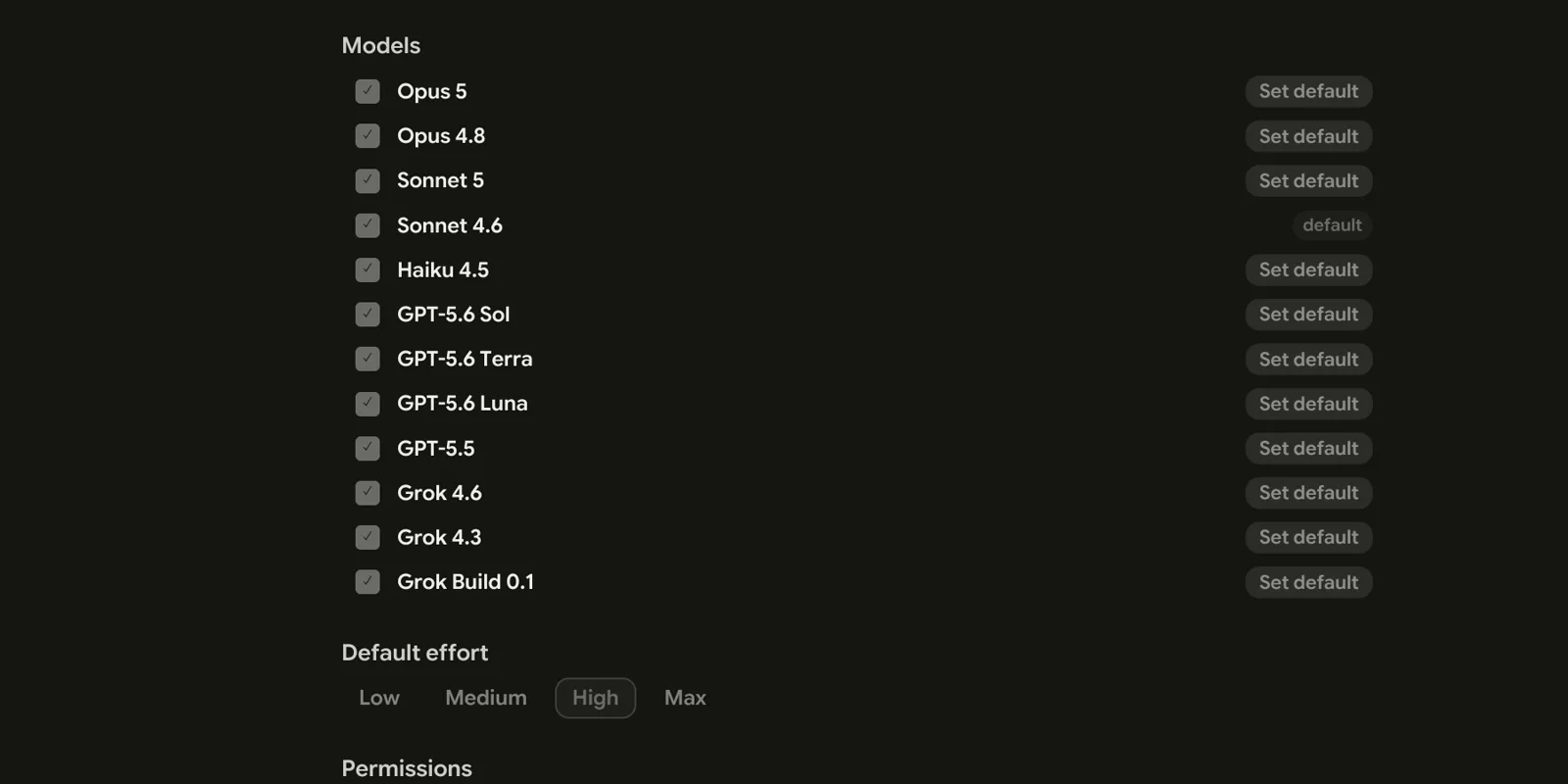
- Enabled models — trim the picker to the ones you actually use. If none are selected, all available models are shown.
- Default model — what a new thread starts on.
- Default effort — how much reasoning to spend. Effort ladders differ per model, so the setting resolves against whichever model is active.
Higher effort costs more tokens and takes longer. It is worth it for case setup, debugging a failed solve, and anything where being wrong is expensive. It is not worth it for "what does this file do".
A sub-agent inherits the thread's model and effort unless the agent asks for something else when it dispatches one, so raising effort on a thread raises it for the work that thread fans out too.
Switching model mid-response
Picking a different model while a response is streaming applies straight away and does not interrupt it. The turn already running finishes on the model it started with, and everything after it is the new model's — anything queued behind the current turn and anything you Steer in alike.
Changing only the effort does not interrupt anything either.
One switch can cost you work. Models fall into three groups — the OpenAI ones, the Anthropic ones, and everything else — and crossing between groups while a run of tool calls is still going rewinds the thread to your message and starts that work over on the new model. What the tools already wrote to disk stays written, so expect some of it to be redone. A switch within a group carries on where the last model left off.
Switching models can also move your effort setting. Effort ladders differ per model, so when the new model cannot offer the level you were on, Prism resolves it to that model's default rather than leaving an effort it does not have.
Project memory
The agent keeps a small Markdown document of notes per project, and reads it at the start of every turn. It is what stops you re-explaining, in each new thread, that this repository solves in millimetres or that you always want the coarse mesh first.
It is always on — there is no toggle. What goes in is meant to be narrow: durable preferences, corrections you have made, and decisions worth carrying forward. The agent is instructed to keep secrets, transient task state, and anything plainly readable from the code out of it, and to ask before saving something it merely inferred — but that is guidance it follows, not a filter Prism enforces. Ask it to remember something and it writes it immediately.
There is no Settings panel for the notes, and the file's location is keyed to the project rather than named after it, so the way to see or change what is saved is to ask: tell the agent to show you its project notes, or to clear them.
Two things worth knowing:
- A hand edit takes effect on your next message. The agent is given the notes afresh each turn, so an edit does not wait for a new thread.
- They live on this computer, not in your project. The file sits in Prism's own application-data directory, keyed to the project, so it is never committed and does not travel with the repository. Notes are capped at 64 KiB.
The agent's reads and writes of the notes do not appear as tool rows in the transcript, so a thread where it saved something looks no different — ask it what it has saved rather than looking for the call.
Skills
Skills are workflow guides the agent loads on demand — how to configure a Ferro case, how to drive the solver daemon, how to set up a multi-region CHT case. They ship with Prism and you can write your own. See Skills.
What it is not
- Not a sandbox. The agent runs on your machine with your permissions. The permission model is what stands between it and your filesystem — configure it deliberately.
- Not deterministic. The same prompt twice can produce different work. Review the diff.
- Not a substitute for engineering judgment. It will happily solve the case you described, including when the case you described is wrong. Units in particular are yours to check.