Interface Tour
Prism's window is one layout with three columns and a title bar. Which columns are on screen depends on what you are doing, but the arrangement never changes, so once you know the three you know the app.
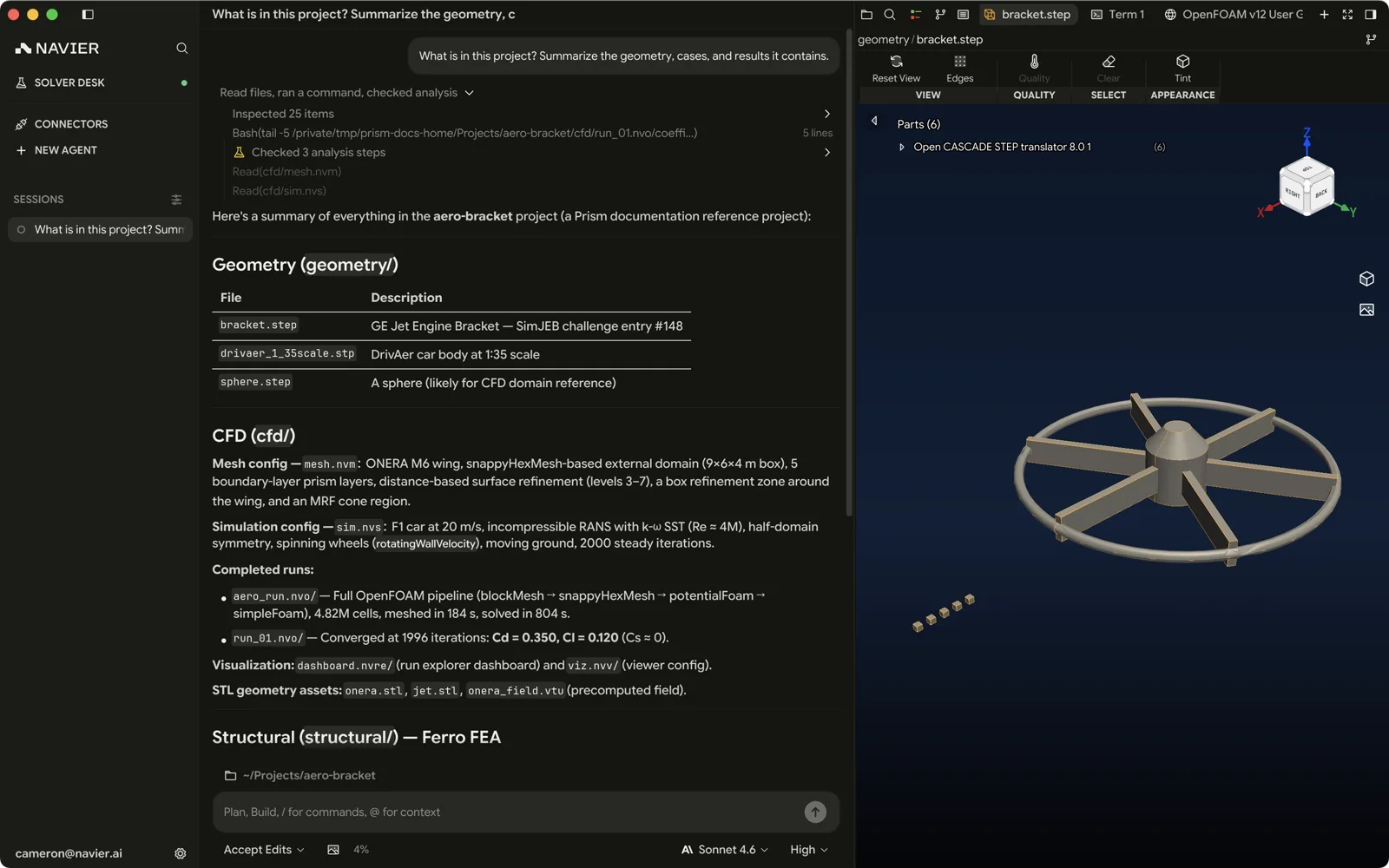
| Region | What it holds |
|---|---|
| Title bar | Window controls, the thread title, and the toggles for the side panels |
| Threads sidebar (left) | Every conversation, newest first |
| Content area (middle) | The chat column — or a full-width page like the Solver Desk, Plugins, or Settings |
| Right pane | Editor, diff, terminal, or browser |
The title bar
The title bar carries three things: window controls, the title slot, and the panel toggles.
The title slot changes with what is on screen. On a normal thread it shows the thread's name and you can click it to rename. On a full-width page — the Solver Desk, Plugins — it is blank, because those pages name themselves in their own headers, and a thread title there would label something that is not visible. In Settings it reads "Settings".

The right-hand side also carries editor status chips — the LSP status, git branch, and similar — but only when the right pane is showing something they describe. A chip that reports on a pane you cannot see is a chip that lies, so those disappear on pages that have no right pane.
The threads sidebar
Every conversation, listed newest first. Click one to switch to it; the full transcript comes back with it.
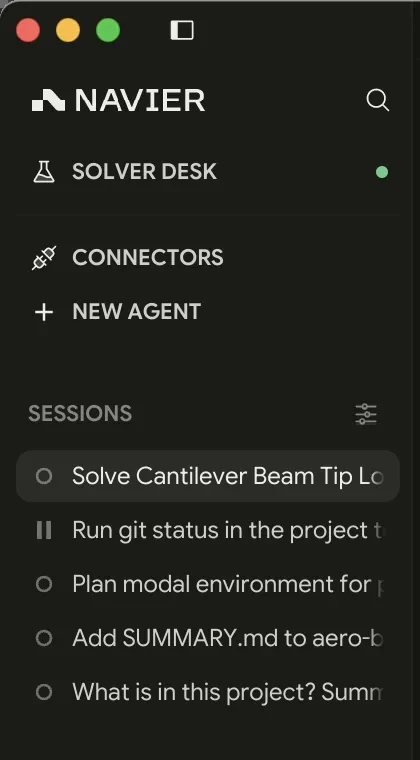
Under the logo sit four rows, above the thread list:
| Row | What it does |
|---|---|
| New Agent | Starts a new thread |
| Search | Opens the command palette |
| Solver Desk | Opens the Solver Desk, and reports the daemon's state while you are elsewhere |
| Plugins | Opens the Plugins catalog |
Hovering New Agent or Search shows the chord that does the same thing, so the rows teach the shortcuts rather than replacing them. Solver Desk and Plugins read as active while their page has the content area.
- ⌘N / Ctrl+N starts a new thread.
- ⌘B / Ctrl+B toggles the sidebar. The command palette calls this Toggle Agent History.
- Drag the seam between the sidebar and the content area to resize it. The width persists.
- The footer carries your account, a bug icon that opens Report a bug, a link to these docs, and the settings gear.
Threads are per-workspace. See Threads & Workspaces for how the workspace attaches and what changes when it does not.
The content area
Most of the time this is the chat column: the transcript above, the composer below. It is where you talk to the agent and where the agent reports back.
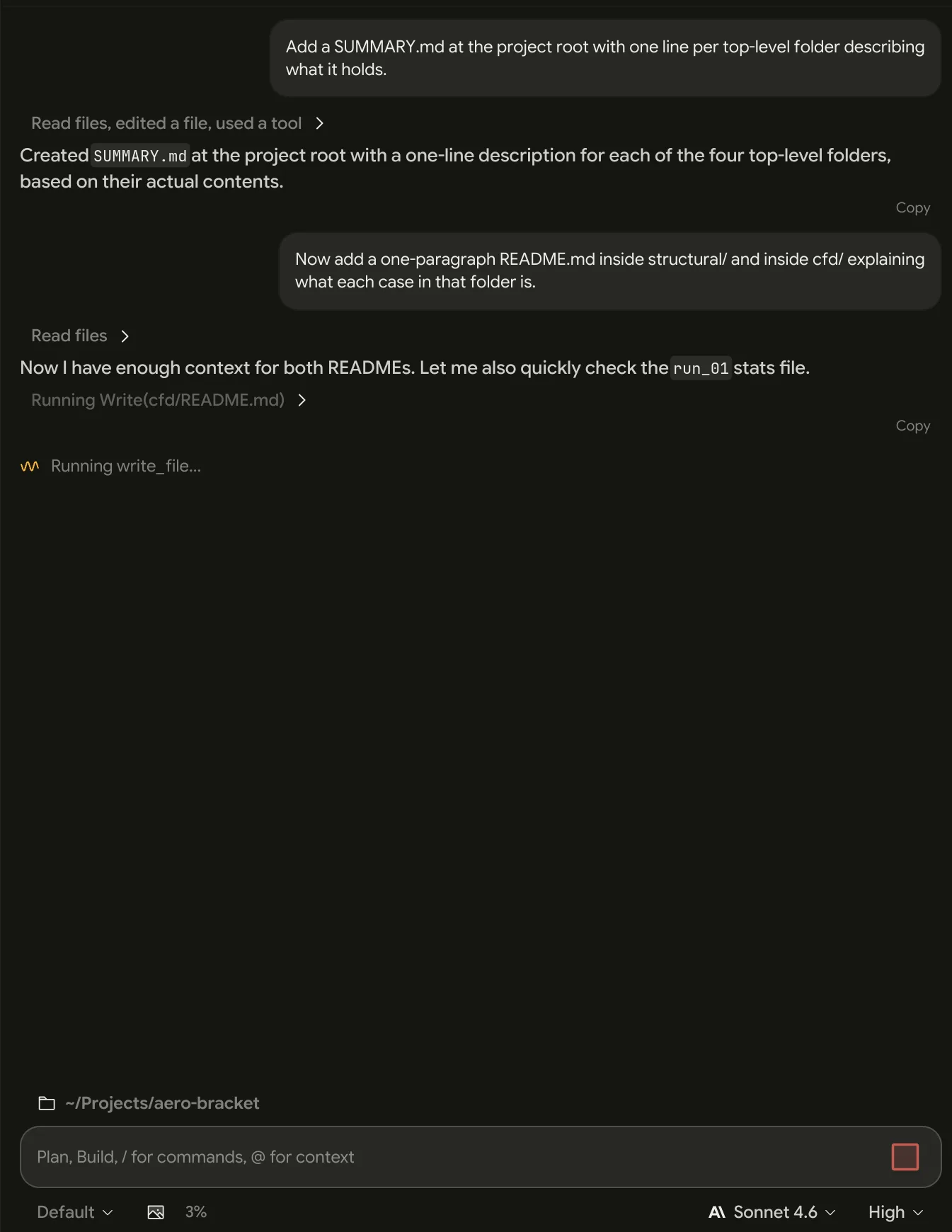
Three other things can take the content area over.
The Solver Desk
A full-width page for navier-solverd: which runtimes are installed, what is
running now, and what recently finished. Covered in
Solver Desk.
Plugins
A full-width catalog of plugins — folders carrying MCP servers (tools the agent can call), skills (workflow guides it can load), or both. Covered in Plugins & MCP and Skills.
Settings
⌘, / Ctrl+,. Settings is a full-width page like the other two: it takes the content area outright, so the right pane is off screen while you are in it. The left sidebar becomes the settings category list — that is how you navigate it, so it is not yours to close there.
Closing Settings lands on the chat rather than on the page you opened it from. Manage runtimes on Solver Desk, in Settings → Solvers, goes straight to the Solver Desk.
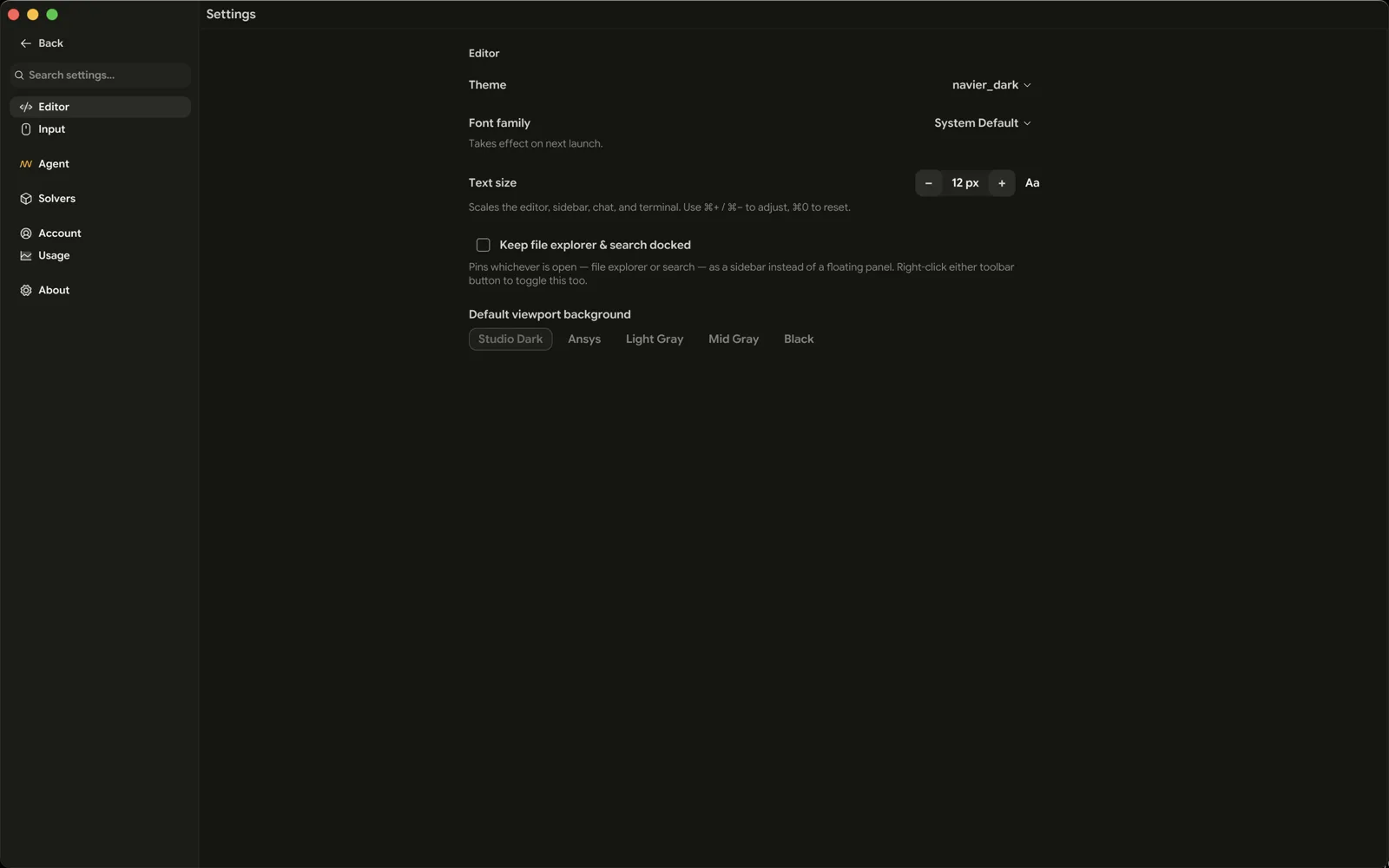
See the Settings Reference for every field.
The right pane
The right pane is where files live. It has four modes and three sizes; see The Right Pane for the full treatment. In short:
| Shortcut | Shows |
|---|---|
| ⌘D / Ctrl+D | The thread diff |
| ⌘E / Ctrl+E | The editor |
| ⌘J / Ctrl+J | The terminal |
| ⌘L / Ctrl+L | Toggle the pane entirely |
The browser has no chord of its own for switching to it — it lives as a tab on the pane's tab strip.
The pane can be collapsed (chat fills the window), expanded (shares the window with the chat, split at a seam you can drag), or maximized (fills the content area, chat and threads sidebar suppressed).
The right pane needs a workspace. On an ungrounded thread there is nothing to show a file from, so the pane and its toggles are unavailable until you attach a folder.
The file explorer
⇧⌘E / Ctrl+Shift+E, or Toggle File Explorer / Terminal List in the command palette, reaches the file tree. By default the explorer and search open as a floating panel over the window rather than a docked rail — quick to summon, gone when you are done.
If you would rather it stayed put, turn on Keep file explorer & search docked in Settings → Editor, and the explorer holds a column of its own inside the right pane instead. Docked and floating are the two modes, and the preference alone decides which you get — a docked explorer never falls back to the floating panel.
Docked, the explorer lives in the right pane, so ⇧⌘E and the search toggle bring the pane up on the editor to show it, once the pane has something to render — a workspace, or a file already open in a tab. Hiding the pane again takes the rail with it rather than popping it out as a modal, and the toggle brings both back. Turning the preference on opens the rail immediately; turning it off closes the panel.
Both belong to the chat. On the Solver Desk, Plugins, or Settings their shortcuts do nothing, and a panel you left open is waiting when you come back.
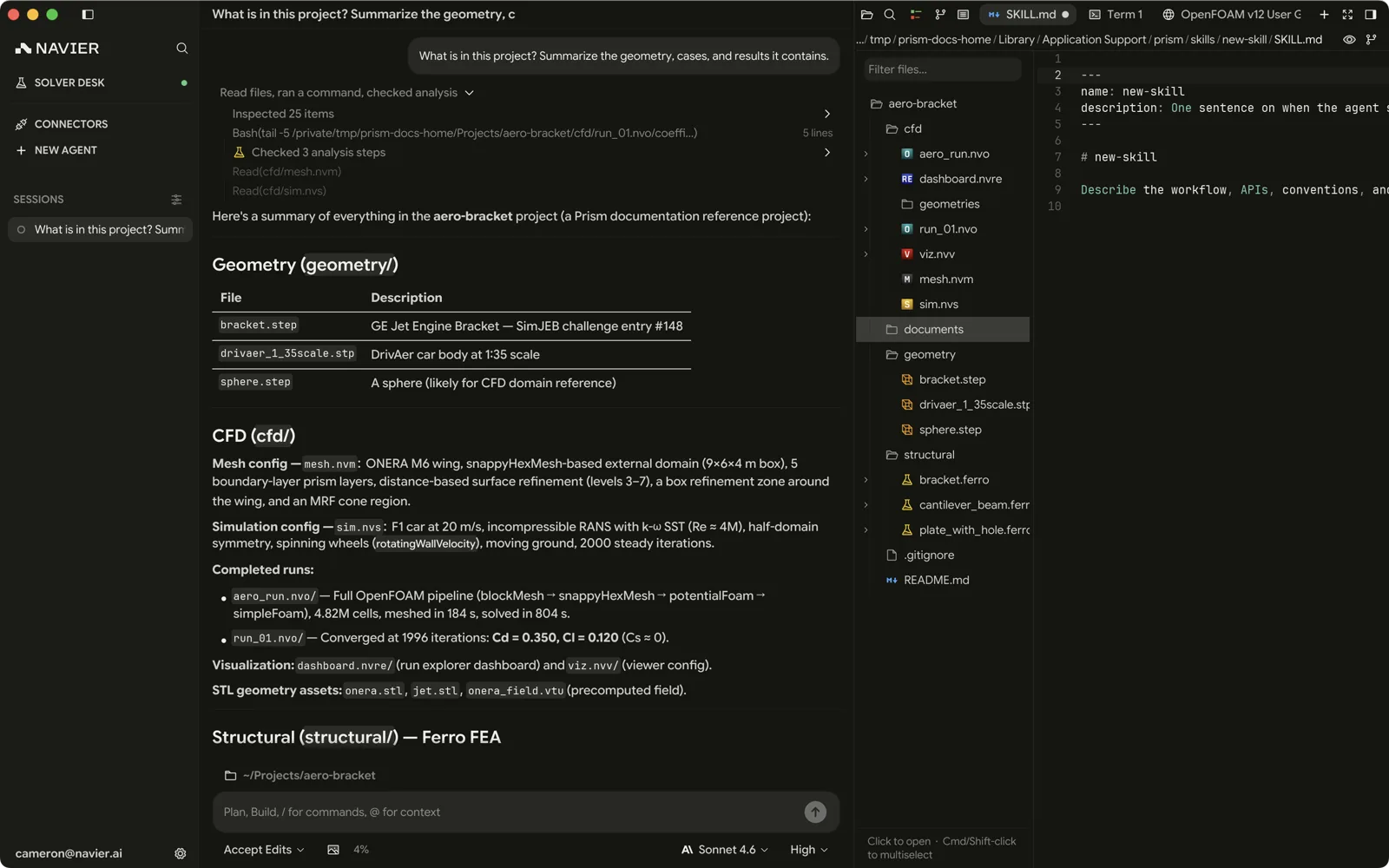
Files are colour-coded by git status when the workspace is a repository. Clicking a file opens it in the right pane using the viewer for its type — see File Types.
Moving files
Dragging a row moves it, and dragging one of several selected rows moves the whole selection. The destination folder and its visible contents shade together while you hover, and a file target stands for the folder it sits in, so you do not have to hit the folder row exactly. Resting on a collapsed folder opens it after a moment, which is how you reach somewhere deep without letting go.
Nothing shades when a drop would move nothing, and such a drop does nothing: into the folder a file already sits in, or a folder into itself or anywhere beneath it. A move never overwrites — a name already taken at the destination is left alone.
Esc cancels a drag in flight.
Searching for a file
Filter files… above the tree searches the whole workspace, not only the
folders you have expanded, so a file in a directory you have never opened is
still one query away. Build and cache folders — target, node_modules,
dist, build, .venv, .git and the like — are left out, but dotfiles such
as .env and .gitignore are indexed.
Nested checkouts (a worktree or a clone sitting inside this one) and your
operating system's own folders — ~/Library, ~/.Trash, ~/.local, the
platform caches — are left out too, so results stay about your project. They
still list and expand in the tree; they are only unsearchable. A root you choose
inside one of them is indexed in full, since choosing it was deliberate.
A symlinked directory is not descended into, so nothing inside it is searchable — it does not expand in the tree either. A symlink to a single file is indexed like any other file.
Open the project folder rather than the directory above it. A root the size of a
home folder is indexed only partway down, and the deepest files drop out of this
search, the palette's Files pill, and the agent's @-mention list alike.
The query is matched case-insensitively against each file's path within the
workspace, as a substring rather than a fuzzy match, and / and \ are
interchangeable. Including a separator therefore lets a query span a path
boundary: cases/pitz finds cases/pitzDaily/system/controlDict.
Hits replace the tree with a flat list. Each row is a file, with the folder it sits in after its name, shortened from the left when it is long; a file at the workspace root shows none. A match on the file's own name sorts ahead of one that only lands in the folder part. Past 200 rows the list ends in an inert N more matches note — narrow the query rather than scroll.
Folders never appear among the hits, so a solver case or a bundle is a row in the tree but never a search result — the files inside it are. The query resets when you open the explorer afresh and when you change workspace; it survives being hidden behind another right-pane view.
The command palette
⌘K / Ctrl+K opens the command palette. Everything reachable by menu or shortcut is reachable here, grouped by category, so the palette doubles as a map of what Prism can do.
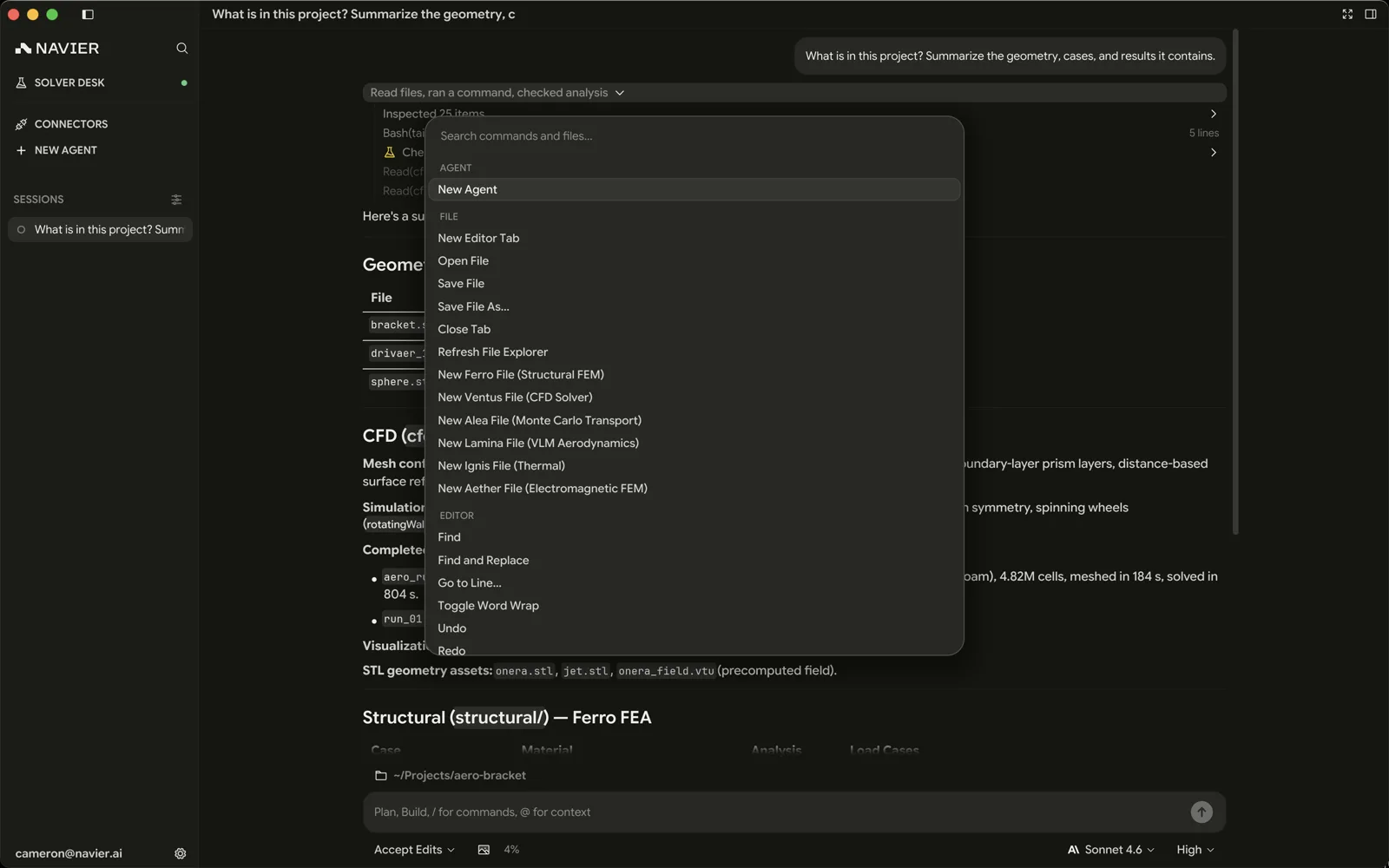
Start typing to filter. The palette covers file operations, editing, view toggles, splits, themes, git actions, and creating a new case file — and beyond commands, your agent threads, the files in the workspace, the plugins and skills available to the agent, and every Settings page and control.
Filtering by pool
A row of pills above the list narrows the search to one kind of thing:
| Pill | What it finds |
|---|---|
| All | Every pool below, ranked together. Every open starts here. |
| Agents | Your agent threads, each with the state glyph the sidebar gives it |
| Commands | Commands, with the shortcut each one runs under |
| Files | Files in the workspace |
| Plugins | Installed plugins and the ones the catalog offers, marked Available |
| Skills | Every skill the agent can load, tagged with where it came from |
On All with an empty query the list stays short — threads, recent files, and commands, grouped under their headers — and the plugin and skill rows join it as soon as you type. Their own pills list those pools in full either way.
How a query on All is ordered
Type on All and the result is one list ranked by how well each row matches, not pool by pool: an exact command match beats a weak thread match, and a file whose name you typed in full sits above a fuzzily-matched skill. Rows of equal match quality fall back to pool order — agents, commands, files, plugins, skills, settings. File rows carried over from your previous keystroke sink to the bottom until the workspace search catches up, however well they match. Section headers drop on that ranked list, so a command row carries its category itself instead.
Settings is the one pool with no pill of its own: Settings: Theme, Settings: Solvers, and every other page and control appear only for a query on All — a page tagged Page, a single control tagged with the category it lives in — and picking one opens Settings there. Searching the palette and searching inside Settings therefore find the same controls.
Move between pills with Tab / ⇧Tab, or with ⌘[ and ⌘], wrapping at either end. Picking a plugin or skill row opens its page rather than installing or running anything.
A row that prints a shortcut runs under that shortcut while the palette is open: ⌘F on the Find row finds, so a chord you read on screen is a chord you can press. The editing chords are the exception — undo, redo, select all, copy, cut, and paste stay with the query field, so they edit what you are typing.