Keyboard Shortcuts
Shortcuts are written here with macOS modifiers. Substitute as follows and everything on this page works on Windows and Linux too:
| macOS | Windows / Linux |
|---|---|
| ⌘ | Ctrl |
| ⇧ | Shift |
| ⌥ | Alt |
The new-thread chord ⇧⌘O is Ctrl+Shift+O, and the tab-stepping chords ⌥⌘← / ⌥⌘→ are Ctrl+Alt+Left / Ctrl+Alt+Right. Function keys are the same key everywhere.
The one exception: ⌃
⌃ is a separate key only on macOS. Everywhere else it is the same physical key ⌘ already stands in for, so a chord that needs both can never fire there. Three chords are macOS-only for that reason, and Prism hides their chips on the other platforms rather than advertising a shortcut that does nothing:
| macOS | Action | Windows / Linux |
|---|---|---|
| ⌃⌘F | Toggle right-pane maximized | Palette → Toggle Right Pane Maximized |
| ⌃G | Go to line | Palette → Go to Line... |
| ⌃` | Show the terminal | Ctrl+J does the same thing |
Find and replace is the other chord that is not a straight substitution — it is ⌥⌘F on macOS, Ctrl+H on Windows and Linux. macOS claims ⌘H for Hide Prism before the window sees the key, so replace takes the Mac convention instead.
A few keys check the physical Ctrl key instead, and so behave identically on every platform: ⌃C to interrupt the agent (a pending question goes with it), ⌃Space for completion, and ⌃ + left-drag to orbit the viewport.
On Windows and Linux ⌃C and ⌘C are the same keystroke, and focus decides which one you get: Ctrl+C in the chat interrupts the agent, and Ctrl+C in the editor, the terminal, or a question card's answer field copies.
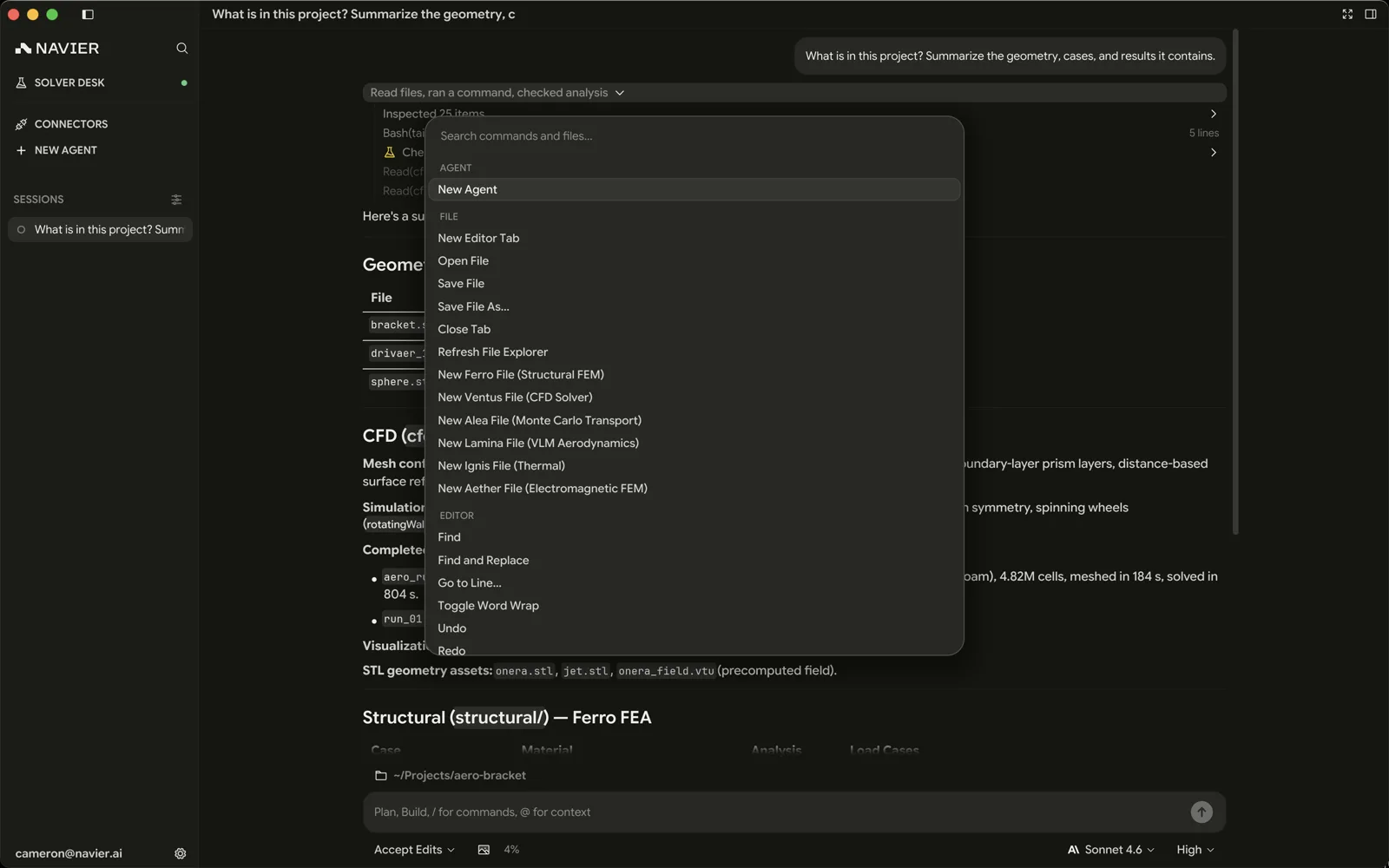
You do not need to memorize this page. ⌘K opens the command palette, and every command on it is searchable by name.
Inside the palette, the All / Agents / Commands / Files / Plugins / Skills pills are cycled with Tab and ⇧Tab, or with the bracket keys ⌘[ / ⌘]. A shortcut a visible row prints runs that row while the palette is open. The editing chords are the exception: undo, redo, select all, copy, cut, and paste belong to the query field while you are typing in it.
Agent
| Shortcut | Action |
|---|---|
| ⌘N | New agent thread |
| ⇧⌘O | New thread, and pick its workspace folder |
| ⇧Tab | Cycle permission mode (chat focused) |
| Enter | Send the message |
| ⌃C | Interrupt a streaming response |
| Esc | Interrupt, if enabled in Settings → Agent |
| ⌘V | Paste — attaches a clipboard image if there is one |
| ⌥⌘↑ / ⌥⌘↓ | Previous / next thread |
In the composer
Typing @ opens the file-and-context picker and / opens the command list. While either popup is up, ↑ / ↓ move the selection, Enter or Tab accepts it, and Esc dismisses it.
Answering the agent's questions
When the agent asks a question, it waits: a question card appears above the composer, and the agent carries on as soon as you answer it. The card has its own keys:
| Shortcut | Action |
|---|---|
| 1–9 | Pick an option and move on (on multi-select, toggle it) |
| ↑ / ↓ | Move the highlight; landing on Other puts the cursor in its field |
| Space | Pick the highlighted option without moving on (toggle it, on multi-select) |
| Enter | Next question, or submit on the last one |
| ⌘Enter | The same, from anywhere — the composer included |
| Skip | Leave this question unanswered and move on |
| ⌃C | Stop the agent (the question is cancelled with it) |
The Other row has the number after the last option; pressing it, like arrowing onto it, puts the cursor in the answer field so you can type straight away, and a free-text question opens with the cursor already there. Typing in the composer answers the current question too, and the × on the card hands the agent whatever you have answered so far and lets it continue. A skipped or dismissed question comes back to the agent as "no answer", and it carries on with its best judgment rather than asking again. Closing Prism mid-question is fine: the agent keeps waiting, and the card is back when you reopen the thread.
The card's answer field is an ordinary text field. On Windows and Linux that means Ctrl+C copies while it has focus rather than stopping — click away, press Esc (if enabled in Settings → Agent), or use the Stop button.
Layout
| Shortcut | Action |
|---|---|
| ⌘B | Toggle the threads sidebar |
| ⌘L | Toggle the right pane |
| ⌃⌘F | Toggle right-pane maximized (macOS only) |
| ⇧⌘E | Toggle the file explorer / terminal list |
| ⌘D | Show the diff |
| ⌘E | Show the editor |
| ⌘J / ⌃` | Show the terminal |
| ⇧⌘F | Search the workspace |
| ⌘, | Open Settings |
| ⌘K | Command palette |
⇧⌘E, ⇧⌘F, ⌘L, and ⌃⌘F belong to the chat. The Solver Desk, Plugins, and Settings each take the content area outright, so on those pages the four do nothing rather than rearrange a page with no room for them.
Tabs and panes
| Shortcut | Action |
|---|---|
| ⌘T | New tab |
| ⌘W | Close tab (or window, if it is the last tab) |
| ⇧⌘T | Reopen the last closed tab |
| ⌥⌘← / ⌥⌘→ | Previous / next tab in the strip |
| ⇧⌘J | New terminal |
| ⇧⌘B | New browser tab (not on Linux) |
| ⇧⌘W | Close the window — quits, with confirmation |
| ⌘\ | Split horizontally |
| ⌘1–⌘9 | Focus pane by index |
| ⌘Q | Quit (with confirmation) |
Tab cycling runs the whole strip — editor, terminal, and browser tabs alike — not just whichever kind currently has focus.
Files and editing
| Shortcut | Action |
|---|---|
| ⌘O | Open file |
| ⌘S | Save |
| ⇧⌘S | Save as |
| ⌘Z / ⇧⌘Z | Undo / redo |
| ⌘A | Select all |
| ⌘F | Find |
| ⌘G | Find next |
| ⇧⌘G | Find previous |
| ⌥⌘F / Ctrl+H | Find and replace |
| ⇧⌘F | Search the workspace |
| ⌃G | Go to line |
| ⌘[ / ⌘] | Jump back / forward |
| F2 | Rename symbol |
| ⇧⌘R | Run the current file |
| ⌘/ | Toggle comment |
| ⇧⌘K | Delete line |
| ⇧⌘[ / ⇧⌘] | Fold / unfold |
| ⌃Space | Request completion |
| F12 | Go to definition |
| F8 / ⇧F8 | Next / previous diagnostic |
Zoom
| Shortcut | Action |
|---|---|
| ⌘+ | Increase text size |
| ⌘− | Decrease text size |
| ⌘0 | Reset text size |
Viewport
The 3D viewport is mouse-driven rather than keyboard-driven; see 3D Viewport for the full control set.
| Input | Action |
|---|---|
| Right-drag | Orbit |
| ⌃ + left-drag | Orbit |
| Middle-drag | Pan |
| ⇧ + right-drag | Pan |
| Scroll | Zoom |
| Left-click | Select |
| ⇧ + left-click | Extend selection |
Commands with no default shortcut
Reachable from the command palette:
- Toggle Sidebar
- Refresh File Explorer
- Split Editor Vertically / Horizontally, Close Split Pane
- Theme switching (nine themes)
- New Ferro Case, New NVPOST
- Open Solver Desk; Start / Restart / Stop Solver Daemon; Open Solver Daemon Log
- Git: Stage / Unstage Current File, Discard Changes, Refresh
- Check for Updates
On Windows and Linux, Go to Line... and Toggle Right Pane Maximized join this list — their chords use ⌃ and do not exist there.