Install & Sign In
Prism is a native desktop application. Installing it gets you the editor, the
agent, the bundled Ferro solver, and navier-solverd — the daemon that runs
third-party solvers — in one download.
Supported platforms
| Platform | Architecture | Artifact |
|---|---|---|
| macOS | Apple Silicon (aarch64) | Signed, notarized .dmg (drag to Applications). In-app updates use a .zip. |
| Windows | x86-64 | .msi installer |
| Linux | x86-64 | .tar.gz archive |
Builds are published to releases.navier.ai. Ask your Navier AI contact for
the download link for your organization if you do not already have one.
macOS
- Download the
.dmg(Apple Silicon only) and open it. - Drag
Prism.apponto the Applications folder alias in the window. - Eject the disk image and launch Prism from Applications or Spotlight.
Do not run Prism from the mounted disk image or from Downloads after unzipping an older archive — macOS App Translocation puts quarantined copies on a read-only mount and the in-app updater refuses to run until the app lives in Applications.
The app is signed with a Navier AI Developer ID certificate and notarized by Apple, so Gatekeeper opens it without the "unidentified developer" prompt. If you do see that prompt, the download was interrupted or altered — re-download rather than right-click-opening it.
Windows
Run the .msi and follow the installer. It registers Prism in the Start menu
and installs the bundled helper binaries alongside the executable.
Updates are applied by downloading a newer MSI and handing it to msiexec, so
an in-app update on Windows will show the standard installer UI.
Linux
Unpack the .tar.gz and run the Prism binary inside it. Keep the directory
intact — Prism resolves several sidecar binaries (the solver daemon, the CAD
mesher, PDFium) relative to its own executable, so moving the binary out on its
own will break those features.
Do not copy just the Prism executable somewhere on your
PATH. Features that shell out to a bundled tool — the Solver Desk, CAD
meshing, PDF rendering — look for that tool beside the executable and will
report it as missing.
First launch
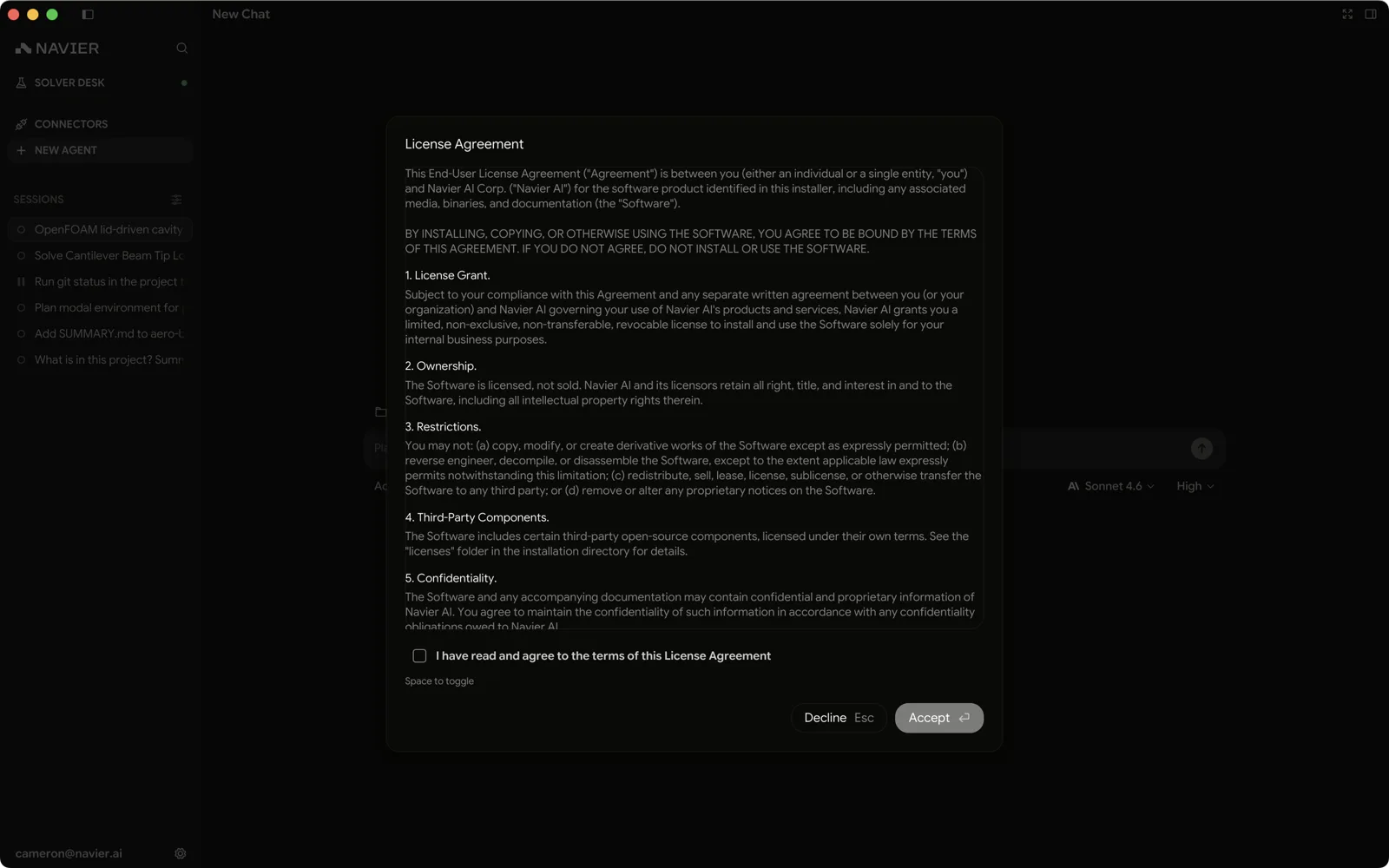
The licence agreement
The first launch shows the end-user licence agreement. You must accept it to continue. Prism records which version of the text you accepted and only re-prompts when the legal text itself changes — not on every release.
Signing in
Prism needs an account, and the window is gated until you have one. Once the licence is accepted, a signed-out launch shows only the Prism lockup and a Log in button. Nothing behind it is reachable: keyboard shortcuts, menu actions, and the editor, viewers and Solver Desk all wait until you are signed in, and closing the window quits rather than asking.
The gate reports the stage it is at:
| What you see | What is happening |
|---|---|
| The lockup alone, no button | Prism is checking for a saved session. A first launch passes through quickly |
| Log in | No saved session — click it to sign in |
| Waiting for browser…, with Cancel | Prism opened your browser; finish the sign-in there, or cancel |
| An error line, with Try again | The sign-in or the restore failed; the message says which |
Log in opens your browser to complete the sign-in and returns you to the app. Signing out from Settings → Account brings the gate back.
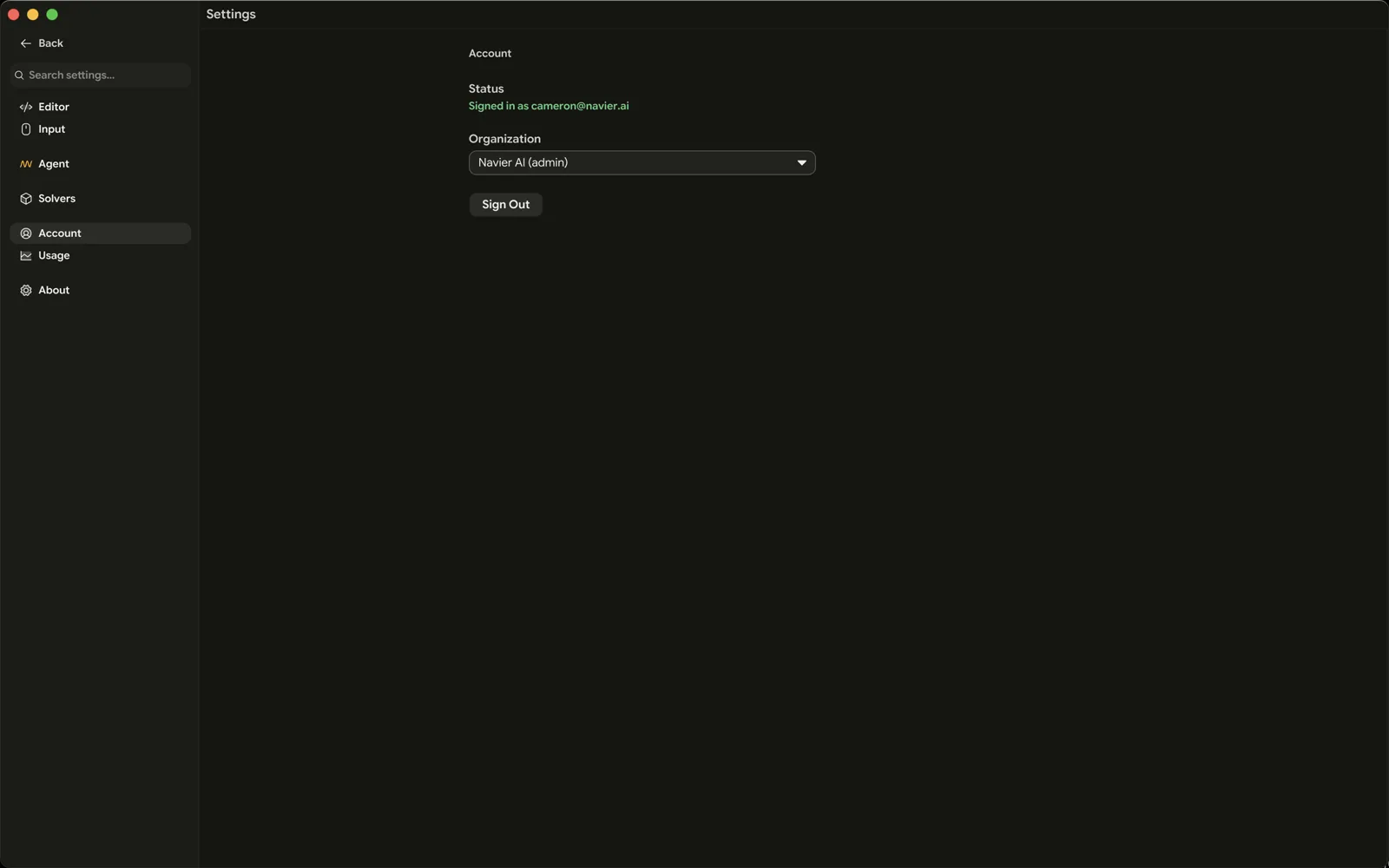
Once signed in, the Account page shows:
- Your status, and Sign Out.
- Your organization, if your account belongs to more than one. Prism remembers the organization you pick and restores it on the next sign-in, as long as you are still a member.
Usage is metered per organization. Settings → Usage shows token counts, call counts, and cost for your account, so you can see what a session actually consumed.
Setting up local tools
The first signed-in launch shows Set up local tools — a card per program Prism relies on but does not bundle (the three language servers share one), each saying what it is needed for and whether it is already on this machine. Docker is marked Recommended and ticked; Gmsh, LibreOffice, Typst, Node.js and the Pyright, TypeScript and rust-analyzer language servers are Optional and unticked. A machine that already has all of them never sees the screen.
Install selected (n) installs what you ticked, Check again re-runs detection after you install something yourself, and Continue without installing moves past the screen with whatever is still missing. On Linux the tools that need root are shown as commands to copy and run instead.
Continuing does not cancel a running install — it keeps going in the background and reports into Settings → Local tools, which holds the same cards for installing anything you skipped.
The screen appears once, however you leave it — continuing or quitting Prism from it — and Settings → Local tools is where it lives afterwards.
Environment Setup covers what each tool unlocks and what installing it does on your platform.
What ships in the box
Settings → About lists the helper binaries Prism resolved at startup and whether each was found. This is the fastest way to answer "why is this feature greyed out".
| Tool | What it does | Bundled |
|---|---|---|
navier-solverd | Runs containerized third-party solvers | Yes |
mesher | OCCT-backed CAD meshing | Yes |
| PDFium | PDF rendering | Yes |
rg, fd, uv | Search and Python tooling the agent uses | Packaged installs only |
gmsh | Alternative mesher | No — GPL-licensed; Prism can install it |
If you want gmsh, tick it on Set up local tools or in Settings → Local
tools and press Install selected — or install it yourself (brew install gmsh on macOS, your distribution's package on Linux, pip install gmsh
anywhere including Windows). Prism picks it up from PATH either way. On
x86_64 Linux Prism unpacks the upstream static build into its own tools folder,
so a newer OCCT from a PPA cannot block it; on other Linux architectures it is
one of the installs Prism leaves to you, with the command shown.
What you still have to install
Two things are not in the box, and the Set up local tools screen offers to install most of them for you:
- A container engine. Third-party solvers — OpenFOAM, code_aster, SU2, CalculiX, and the rest — run as containers, so the Solver Desk needs Docker Desktop, Podman, Colima, or an equivalent. Ferro is compiled into Prism and needs nothing.
- A handful of optional tools — LibreOffice for previewing PowerPoint
decks and Word documents,
gmshfor alternative meshing, Typst for typeset reports, Node.js for MCP servers that run locally, language servers for editor diagnostics, the 3DxWare driver for a SpaceMouse.
Environment Setup covers each one per platform, including how to size Docker's CPU, memory, and disk for the cases you actually intend to run. Do that next.
Updating
Prism checks for updates against a signed manifest and can update itself.
- Command palette → Check for Updates, or Settings → About → Updates.
- When an update is available, Update now downloads and installs it.
- macOS and Linux replace files in place; Windows runs the downloaded MSI.
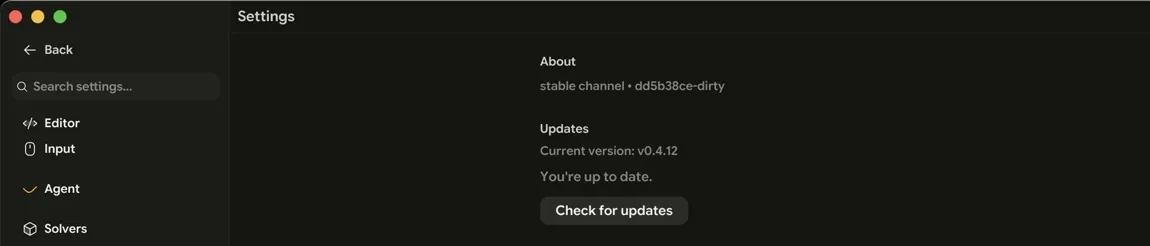
Builds come from one of two channels — stable or dev — fixed at build time. A dev build only ever updates to dev builds, and vice versa; switching channels means installing the other build.