The Right Pane
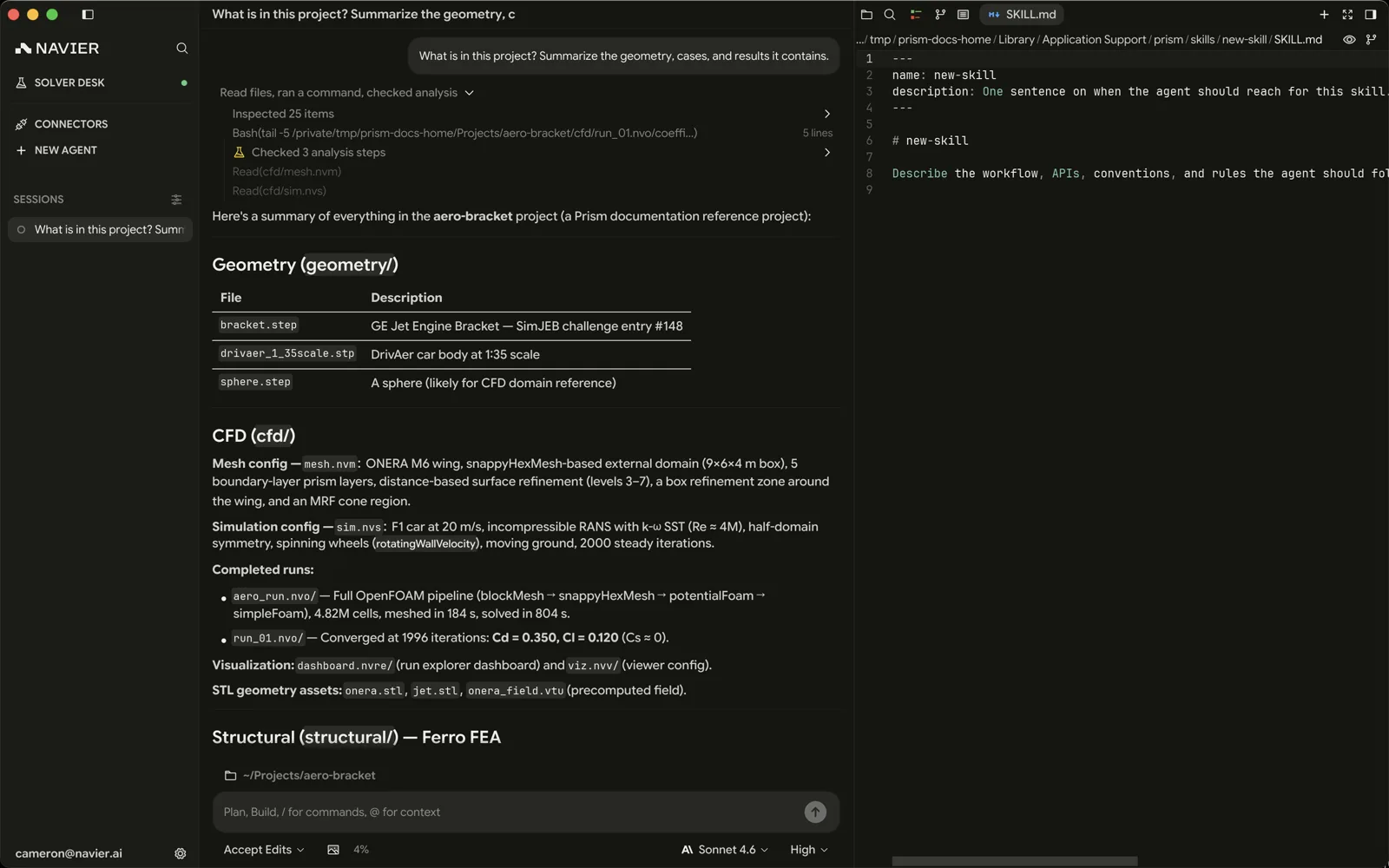
The right pane is the half of Prism that holds files. The chat column is where you talk about the work; the right pane is where you look at it, edit it, run it, and review it.
Sizes
The pane has three states, not a visible/hidden flag:
| State | Behaviour |
|---|---|
| Collapsed | Hidden. The chat column fills the content area. |
| Expanded | Shares the content area with the chat, split at a seam you can drag. The split is stored as a fraction, so resizing the window preserves the proportions. |
| Maximized | Fills the content area. The chat column and threads sidebar are suppressed. |
| Shortcut | Action |
|---|---|
| ⌘L / Ctrl+L | Toggle the pane |
| ⌃⌘F | Toggle maximized (macOS only — see Shortcuts) |
Because maximized implies visible, the pane can never be hidden while primed to reopen full-screen — there is no state where the toggle does something surprising.
Modes
The pane shows one of four things at a time.
| Shortcut | Mode | What it is |
|---|---|---|
| ⌘E / Ctrl+E | Editor | Text editor and every specialized viewer |
| ⌘D / Ctrl+D | Diff | The thread's change set |
| ⌘J / Ctrl+J | Terminal | A shell in the workspace directory |
| — | Browser | An embedded webview |
Diff is a fixed chip at the head of the tab strip, ahead of the editor, terminal, and browser tabs. A browser tab opens with ⇧⌘B or from the tab strip's add-tab menu.
Editor
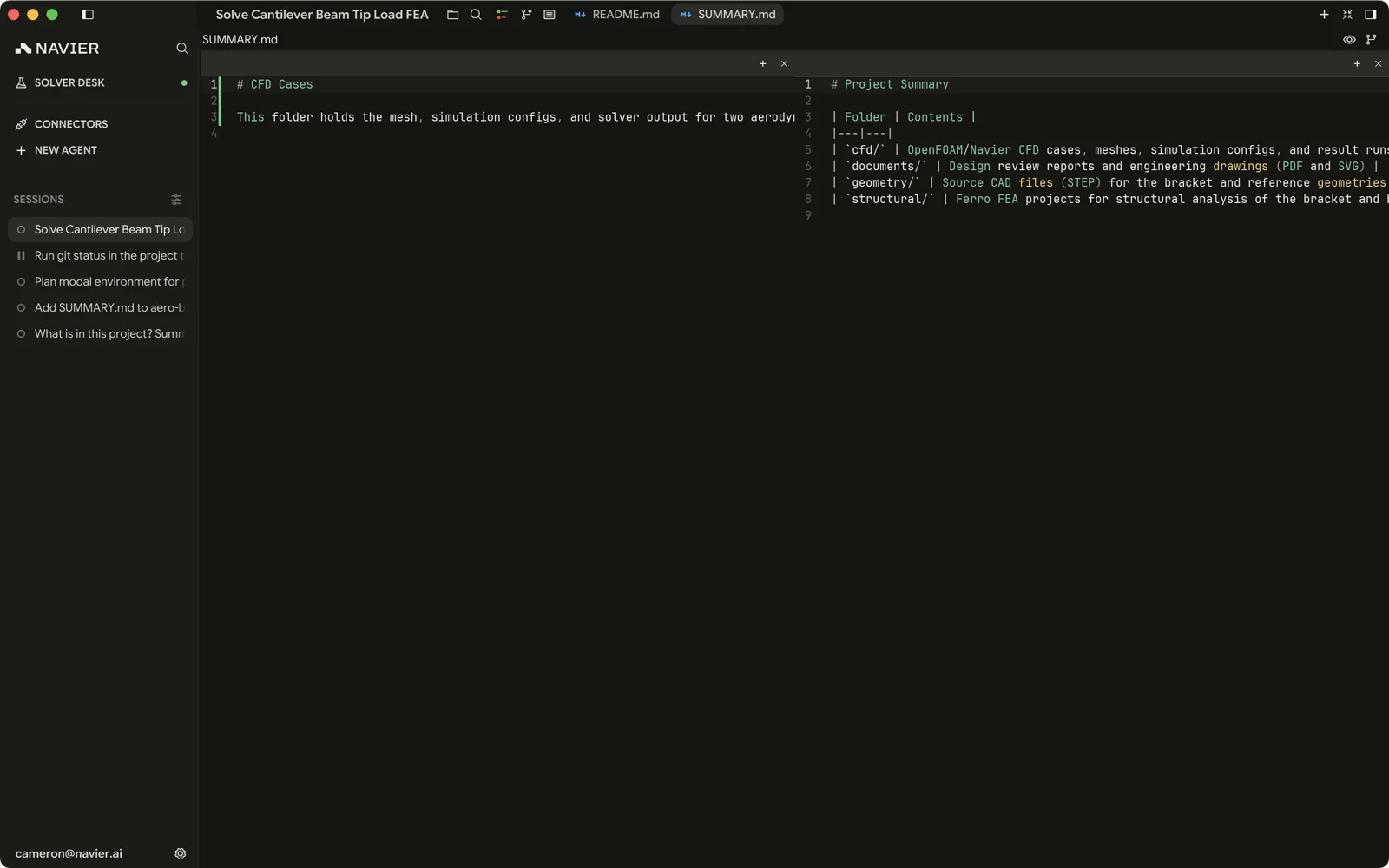
A full text editor with tabs, splits, and language support.
Tabs and splits
| Action | Shortcut |
|---|---|
| New tab | ⌘T / Ctrl+T |
| Close tab | ⌘W / Ctrl+W |
| Reopen the last closed tab | ⇧⌘T |
| Previous / next tab | ⌥⌘← / ⌥⌘→ |
| Split horizontally | ⌘\ |
| Focus pane by index | ⌘1 … ⌘9 |
| Split vertically / close split | Command palette |
Panes tile in a split tree, so you can put a config file beside the 3D view of the geometry it references, or a solver log beside the case it came from.
Editing
| Action | Shortcut |
|---|---|
| Save | ⌘S / Ctrl+S |
| Save as | ⇧⌘S |
| Find | ⌘F / Ctrl+F |
| Find next | ⌘G |
| Find previous | ⇧⌘G |
| Find and replace | ⌥⌘F / Ctrl+H |
| Go to line | ⌃G (macOS only) |
| Undo / redo | ⌘Z / ⇧⌘Z |
| Select all | ⌘A |
| Jump back / forward | ⌘[ / ⌘] |
| Rename symbol | F2 |
| Run the current file | ⇧⌘R |
| Toggle comment | ⌘/ |
| Delete line | ⇧⌘K |
| Fold / unfold | ⇧⌘[ / ⇧⌘] |
| Request completion | ⌃Space |
| Go to definition | F12 |
| Next / prev diagnostic | F8 / ⇧F8 |
Search across the workspace is ⇧⌘F; ⌘F stays within the current file.
Language support
Prism speaks the Language Server Protocol, so for languages with a server available you get diagnostics inline, hover documentation, completions, and symbol rename. Diagnostics also surface as underlines in the gutter and as a status chip in the title bar.
A language gets these only when a server for it is installed on your machine — see Environment Setup. Without one the editor still works; it just has nothing to report.
Themes
Nine editor themes ship in the box, switchable from the command palette: Navier Dark, Navier Light, Monokai, GitHub Dark, One Dark, Gruvbox Dark, Catppuccin Mocha, Solarized Dark, and Rosé Pine. The choice also drives the rest of the UI, so the app matches the editor rather than fighting it.
Diff
The tracked change set for the current thread — files created or edited through
successful edit_file and write_file calls, rendered as a review. Historical
tracked file deletions also remain visible.
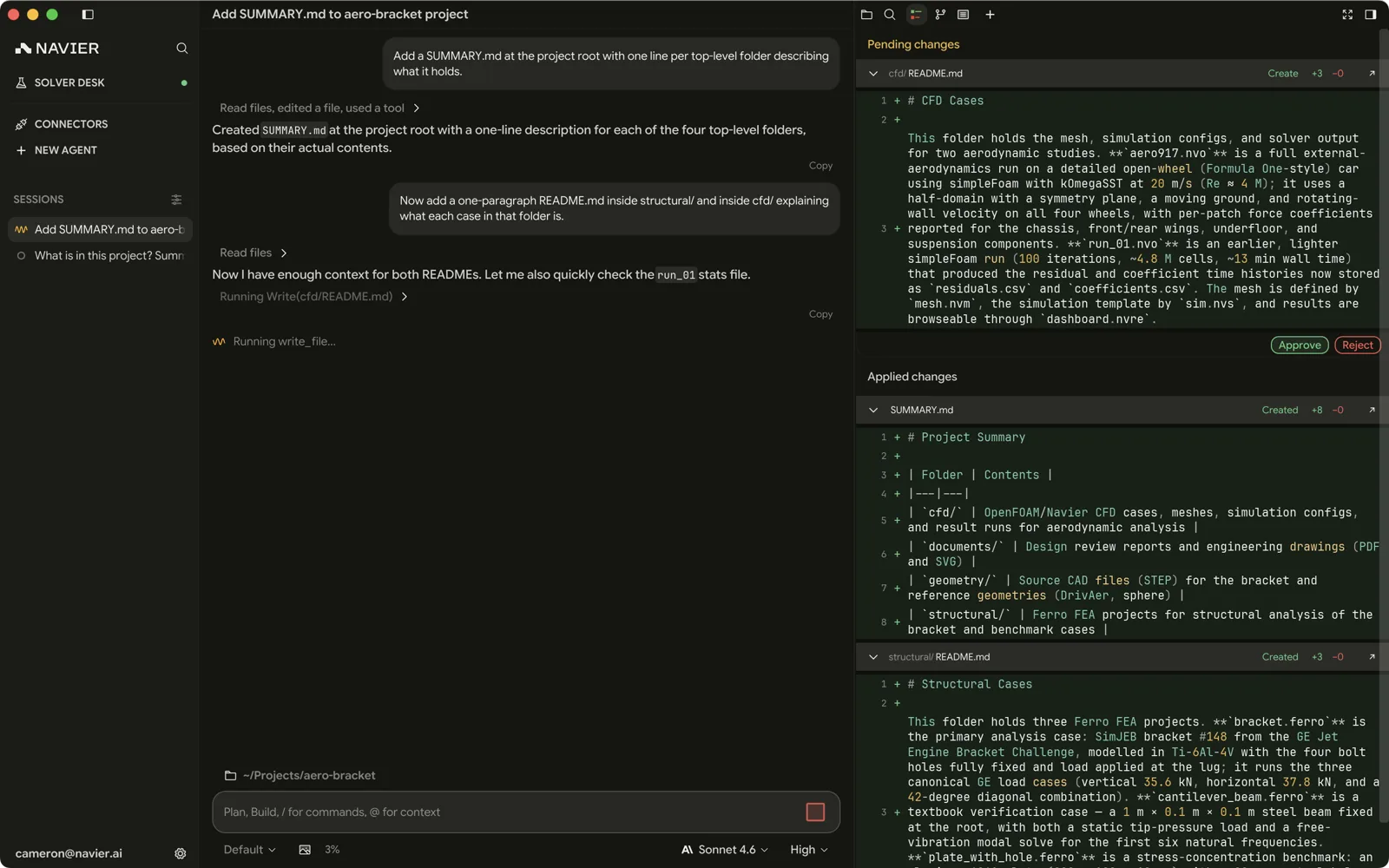
This is the pane to live in when the agent is doing real work. It is built from tracked file-tool changes rather than from git status, including in directories that are not repositories at all. File renames, deletions, and content changes made through shell commands are not recorded here or in rewind history.
Reviewing here is not optional discipline, it is the workflow. See Reviewing Changes.
Terminal
A real shell, rooted at the workspace directory.
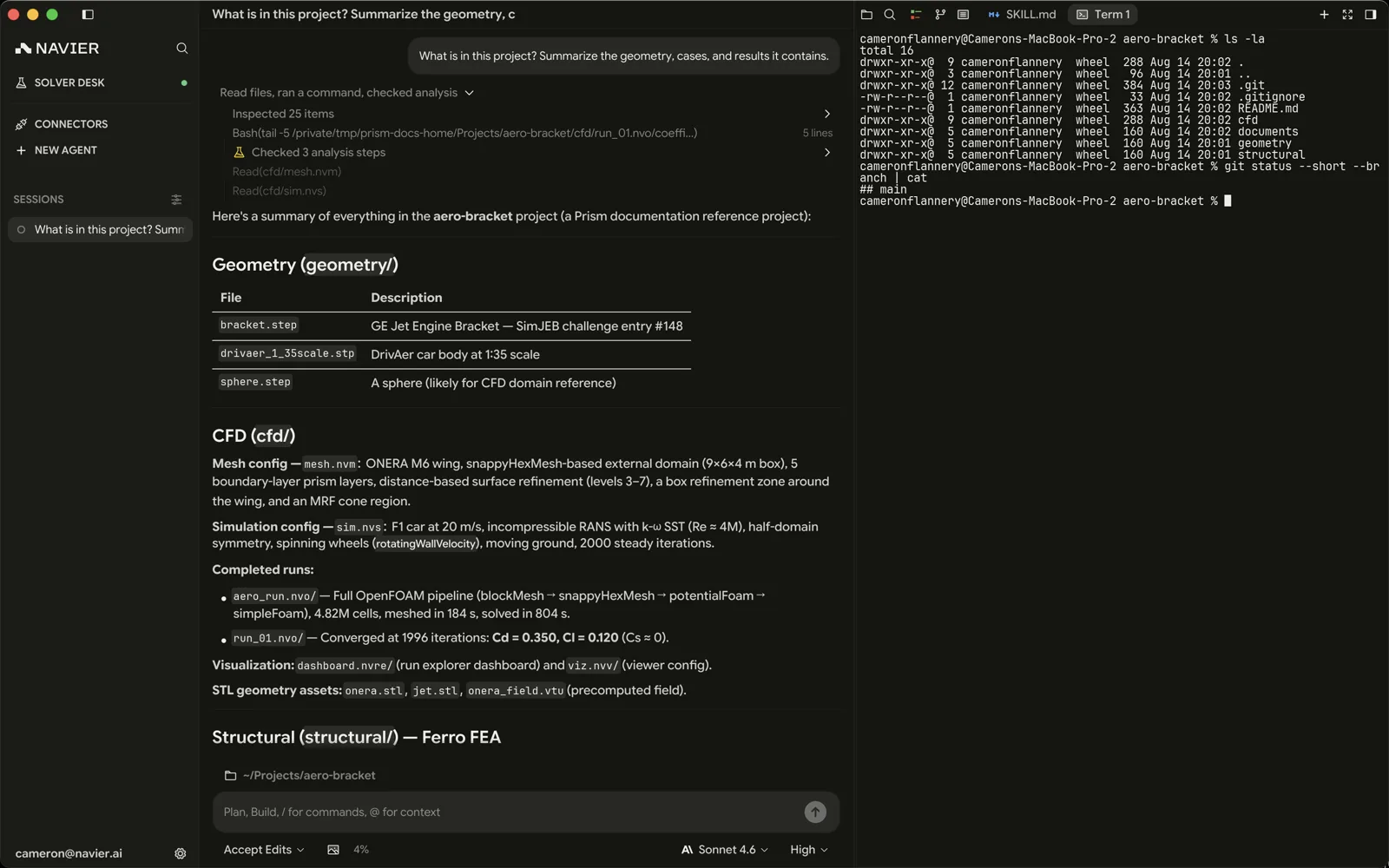
- ⌘J / Ctrl+J / Ctrl+` shows it.
- ⇧⌘J spawns a new one.
The terminal owns its keyboard input while focused, so bare keys such as the arrows, Esc and Ctrl+C go to the shell rather than to Prism. Command-chorded application shortcuts (⌘W, ⌘T, ⌘S) still work, so you are never stuck in a terminal that has swallowed Prism's own shortcuts.
This is your own shell, separate from the agent's. Anything you run here is not approved by, gated by, or visible to the agent.
Browser
An embedded webview, so documentation, a datasheet, or a supplier page can sit beside your work instead of in another application.
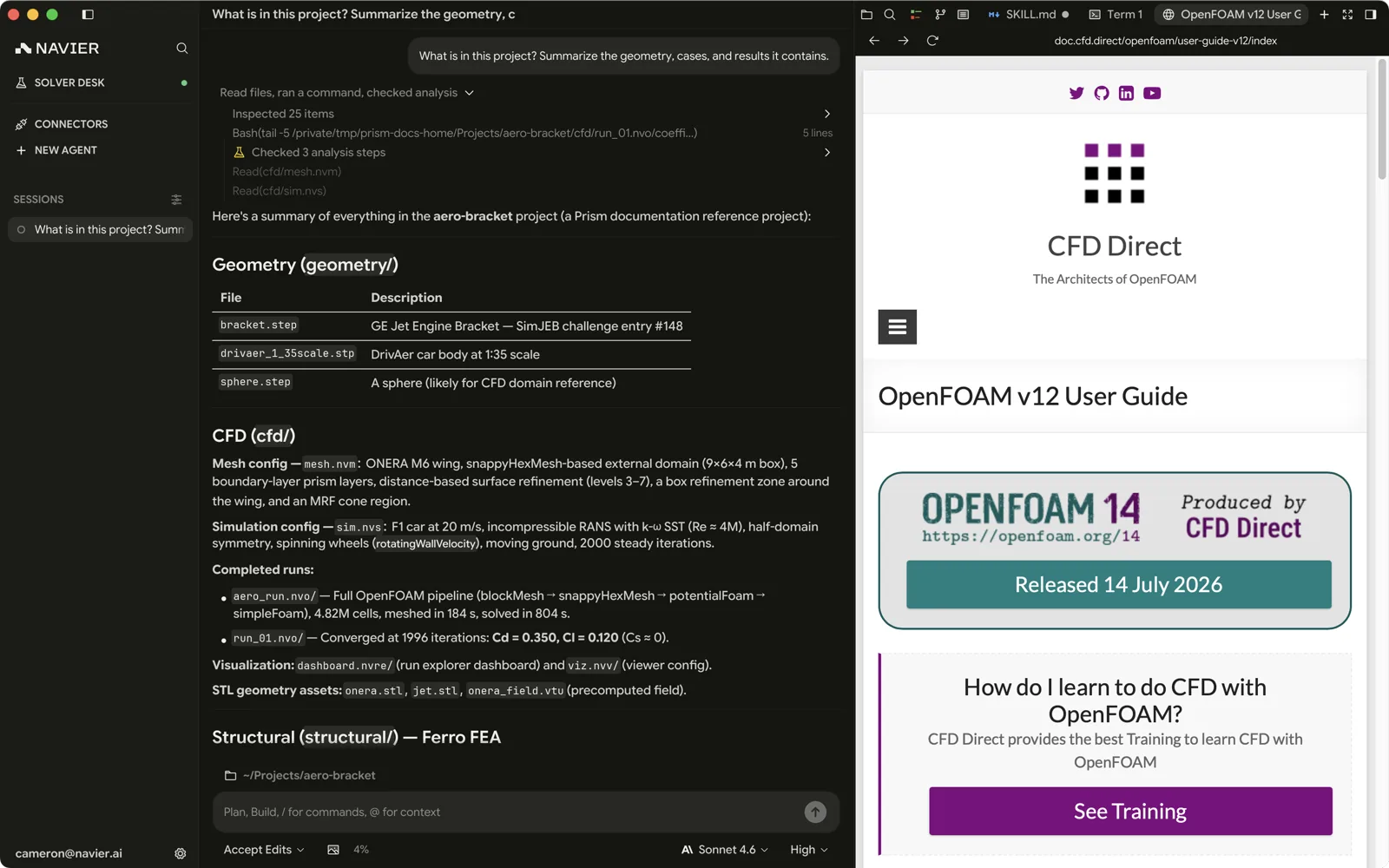
- ⇧⌘B opens a new browser tab.
- By default, links the agent produces open here rather than in your system browser. Turn that off in Settings → Editor if you would rather they went to your normal browser.
- Right-click an HTTP(S) link in chat to choose Open in External Browser or
Open in Prism Browser.
mailto:links can only open externally. On Linux, the embedded browser is unavailable, so chat links open externally.
The toolbar
Above the page sit Back, Forward, and Refresh, then the address field.
A blank tab you open yourself lands with the field focused and the placeholder
Search the web or enter a URL — type either. An absolute local path works
too (/Users/you/report.html, C:\Users\you\report.html, or a UNC share) and
opens the file rather than going to a web search. On a loaded page the field
shows the address instead, with the origin emphasized and the rest of the URL
dimmed: a shield marks HTTPS, and a plain HTTP page is labelled Not secure.
Clicking the address selects the whole URL, so typing replaces it. Esc abandons the edit and puts the live address back, and so does leaving for another tab. A redirect that lands while you are typing does not: your half-typed URL stays.
Back and Forward stay enabled once a tab has loaded anything at all, rather than greying out at the ends of history.
Agent control
The agent has browser tools of its own, which is how it looks something up without you pasting it in: it loads pages, reads them, and clicks, types, and navigates as you would.
The first time the agent loads a URL in the thread you are looking at, the pane comes up so you can see what is happening; later loads in the same session leave the pane alone, though each one still selects the agent's tab. The tab it is driving carries a soft purple outline in the tab strip, and a cursor overlay shows where it is about to act. The cursor animates with the page as it scrolls, and lands straight on the spot instead if your system asks for reduced motion. In the transcript three or more browser calls in a row collapse, by default, into one Used N browser actions row.
The outline and the cursor clear when the agent finishes, and on their own after about 25 seconds without a browser call.
The agent cannot read what you have typed: when it lists what is on screen, an editable field is labelled by its placeholder rather than its contents, and the headings-and-links outline leaves field and editor text out.
The embedded browser is not available on Linux builds. The shortcut and menu entry are removed there rather than left pointing at a pane that cannot do anything, and the agent is not offered browser tools either — on Linux it never tries to look something up in a pane that does not exist.