Quick Start
This walks a first session end to end: pick a folder, ask the agent for something real, watch it work, review what it changed. It takes about ten minutes and assumes you have installed Prism and signed in.
The third example below runs an OpenFOAM case, which needs a container engine. If you have not set one up yet, Environment Setup covers it — everything else on this page works without it.
1. Open a workspace
Prism starts on an empty thread with no workspace attached. A thread without a workspace is ungrounded — the agent has nothing to read or write, so most of its tools are unavailable and the right pane has nothing to show.
Give it a folder:
- Click Pick a folder to continue in the composer — the system picker on a first run, a list of recent projects once you have some, or
- Press ⇧⌘O / Ctrl+Shift+O to start a fresh thread and pick a folder in one step.
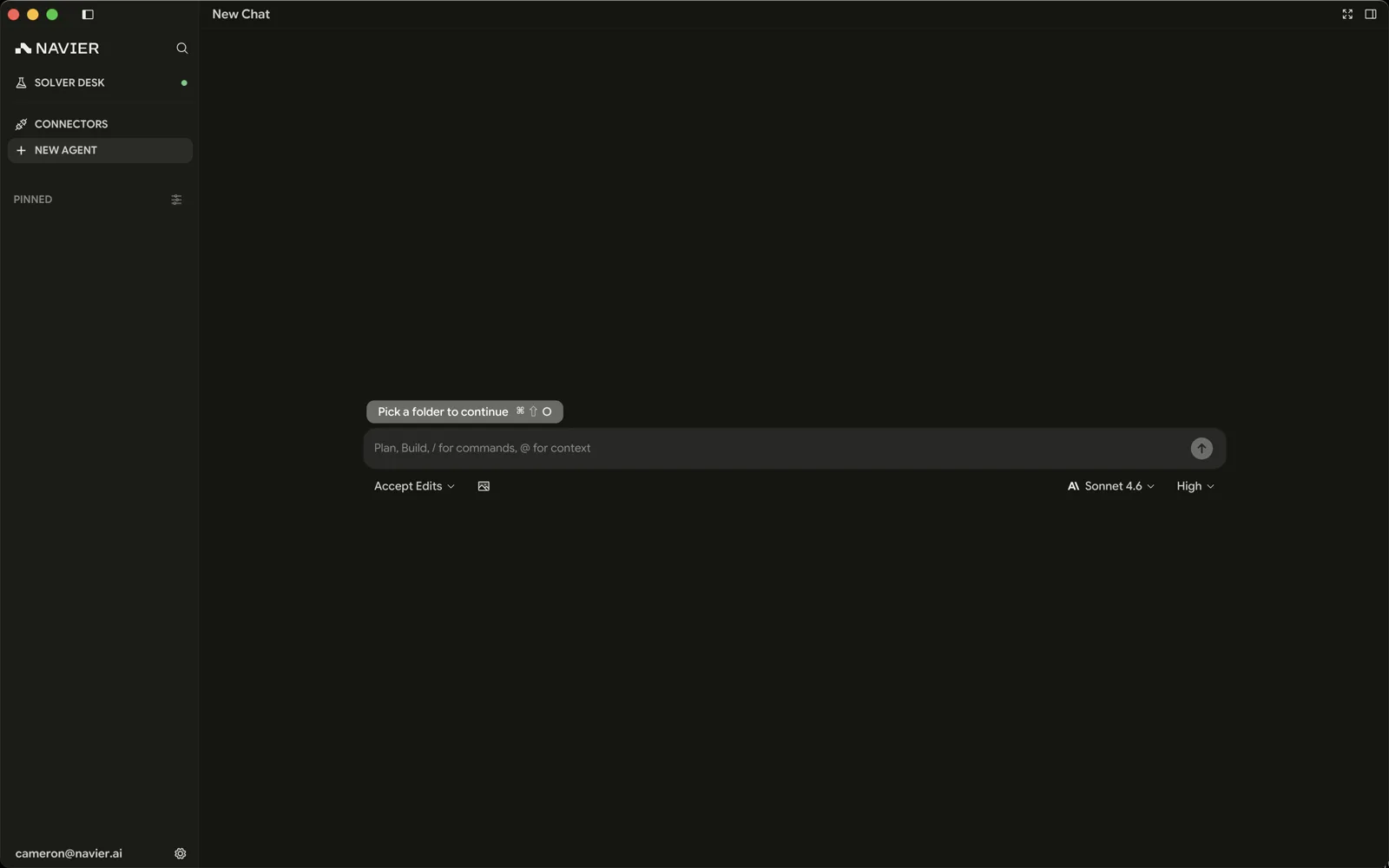
Pick the directory your project actually lives in — a CAD project, a repo, a folder of OpenFOAM cases. Everything the agent reads and writes is scoped to that folder, and the file explorer, search, and git integration all follow it.
If the folder is a git repository, Prism picks up the branch and file statuses automatically. That is what makes the review step at the end of this page work, so prefer a repo for your first session.
2. Look at something
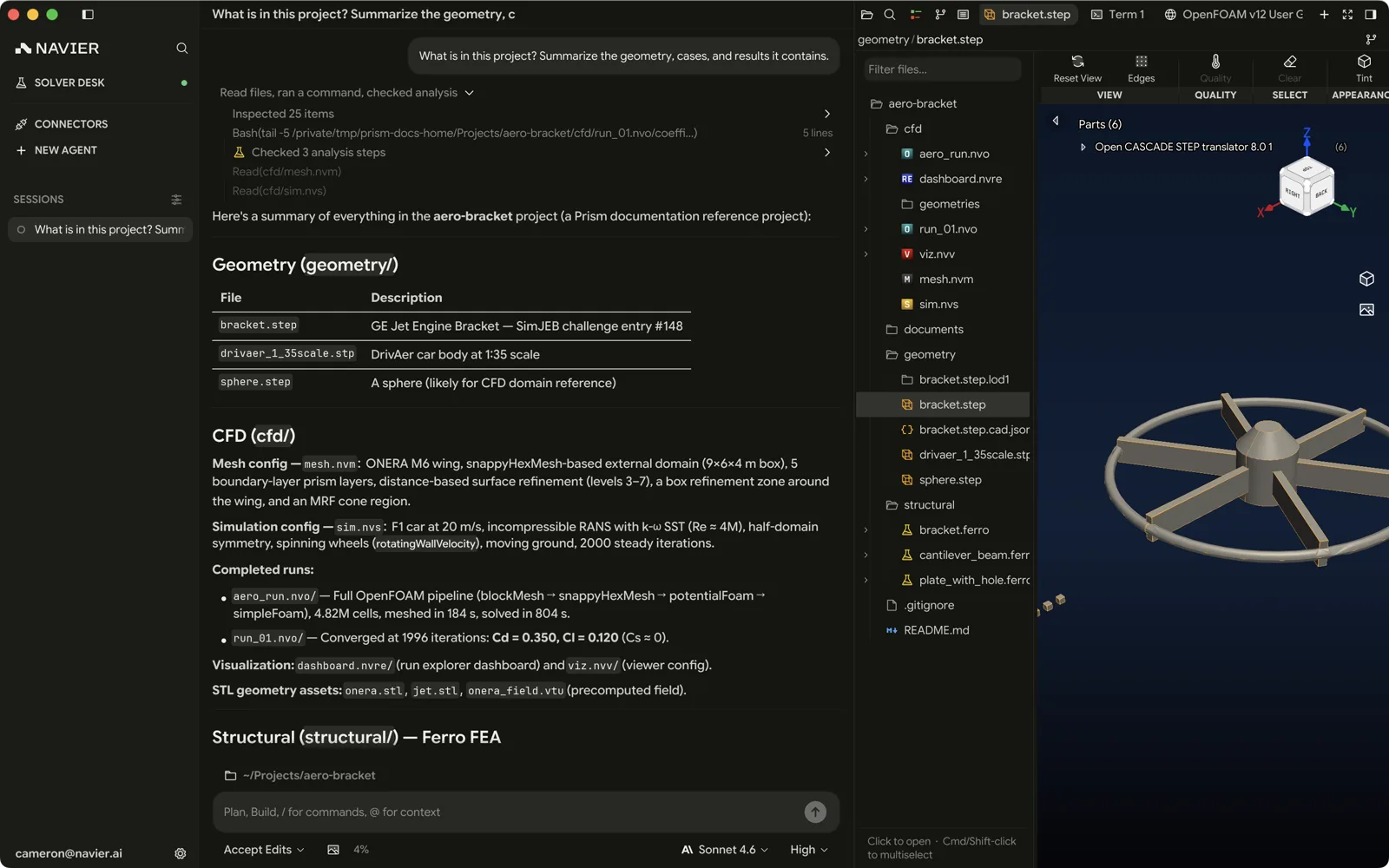
Before asking for work, get a feel for the viewers. Open the file explorer with ⇧⌘E on macOS, or Toggle File Explorer / Terminal List in the command palette (⌘K / Ctrl+K) — and click a file.
- A
.step,.stl, or.objopens the 3D viewport. - A
.md,.pdf, or.pptxopens rendered, not as source. - Anything else opens in the text editor with syntax highlighting.
Drag to orbit with the right mouse button, pan with the middle button, and scroll to zoom. The 3D Viewport page covers the full control set.
3. Ask for something
Type into the composer at the bottom of the chat column, then press Enter. Some first prompts that exercise different parts of the app:
Read the geometry in ./cad and tell me what this assembly is,
what the overall dimensions are, and which parts are structural.
Set up a static structural analysis of bracket.step: fixed at the
two mounting holes, 500 N downward at the tip, 6061-T6 aluminium.
Solve it and show me the von Mises field.There's an OpenFOAM case in ./cases/pipe. Check the mesh, run it,
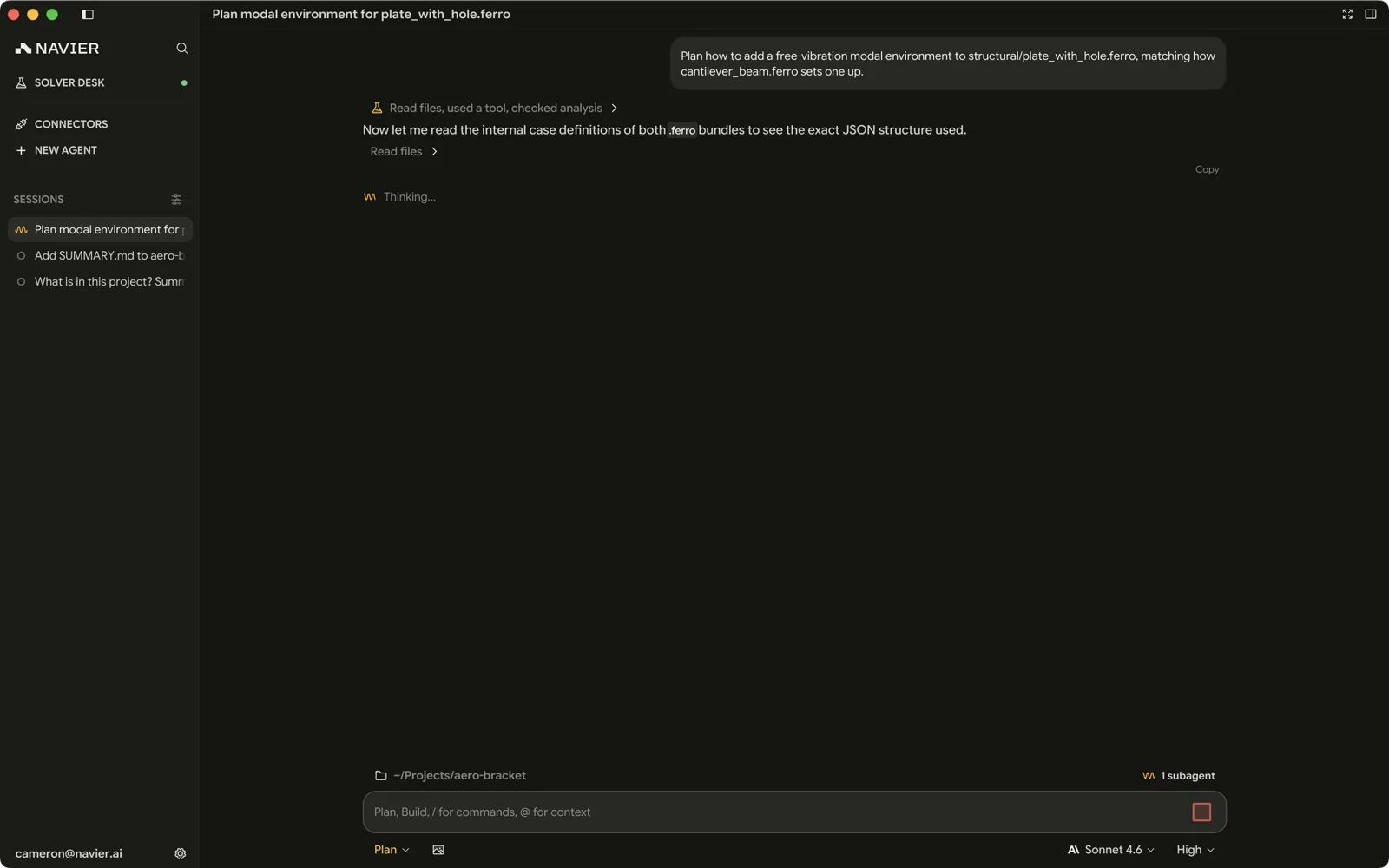
and tell me whether it converged.The agent narrates what it is doing as it goes. Each tool call renders as a row in the transcript — a file read, a shell command, a search, a solve. Click a row to expand it and see the actual arguments and output.
Getting a plan first
For anything substantial, ask for a plan before the work. With the chat focused, ⇧Tab cycles to Plan mode: the agent is instructed to do non-mutating research and propose an approach. Review the plan, then exit Plan before asking for implementation.
This is the single most useful habit for a first session. It costs one extra round trip and tells you whether the agent understood the problem before it makes the requested changes. Plan is not a read-only shell sandbox; shared allowlist rules and shell approvals still apply. See Permissions & Approvals for the shell-trust limits.
4. Approve what it wants to do
Depending on your permission mode, the agent will stop and ask before running a shell command or editing a file. The approval card shows exactly what it wants to run.
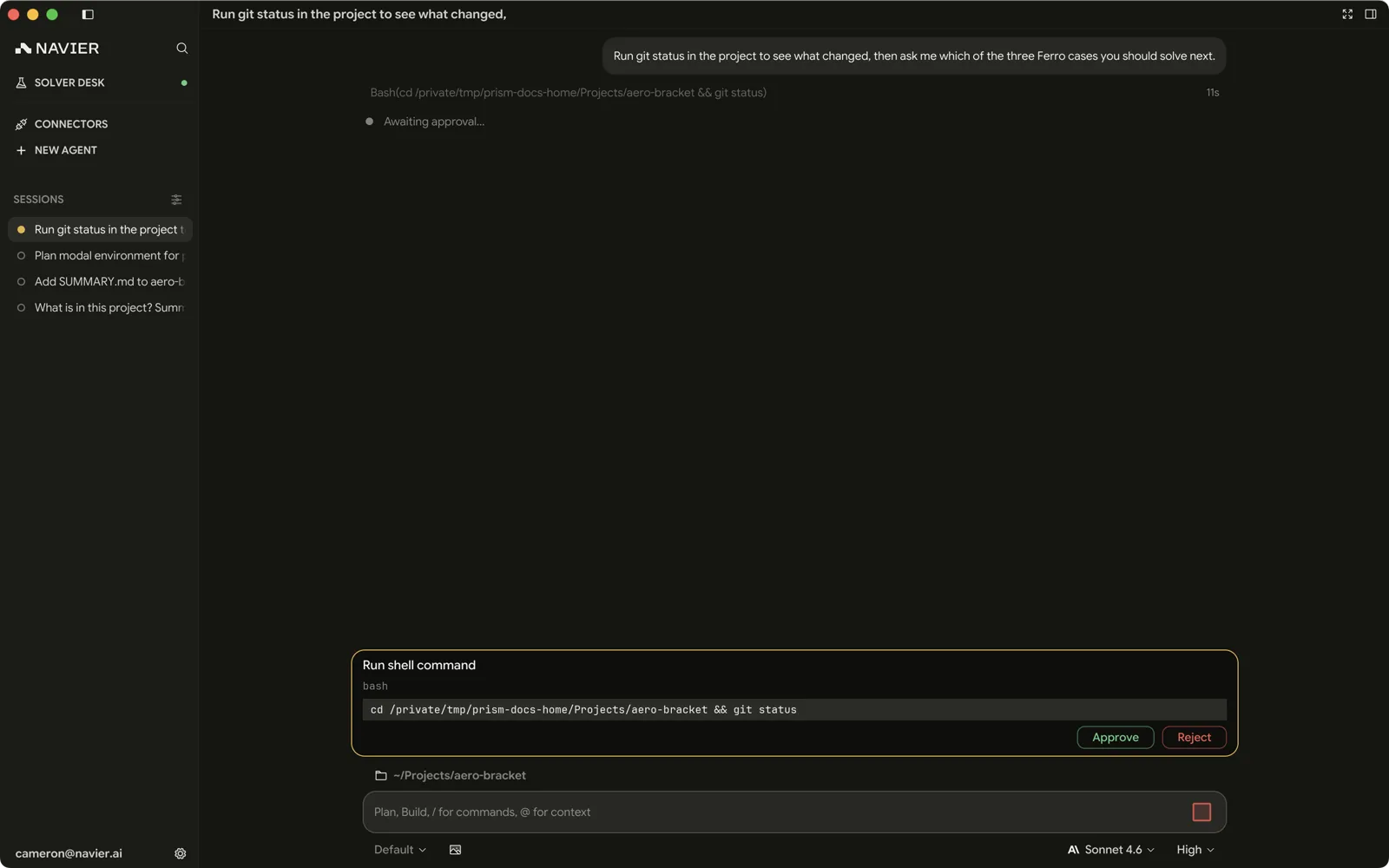
New installs default to Accept Edits: file edits go through automatically, shell commands still ask unless they match your allowlist or the recognized skill/attachment read carve-out. See Permissions & Approvals for the full model and how to loosen or tighten it.
5. Review what changed
The right pane is where you check the agent's work rather than take its word for it.
- ⌘D / Ctrl+D shows the diff — file changes recorded
by
edit_fileandwrite_filein this thread, as a reviewable change set. Shell changes, including renames and deletions, are not recorded there. - ⌘E / Ctrl+E shows the editor, so you can edit the result yourself.
- ⌘J / Ctrl+J shows the terminal, in the same workspace directory, if you want to verify something by hand.
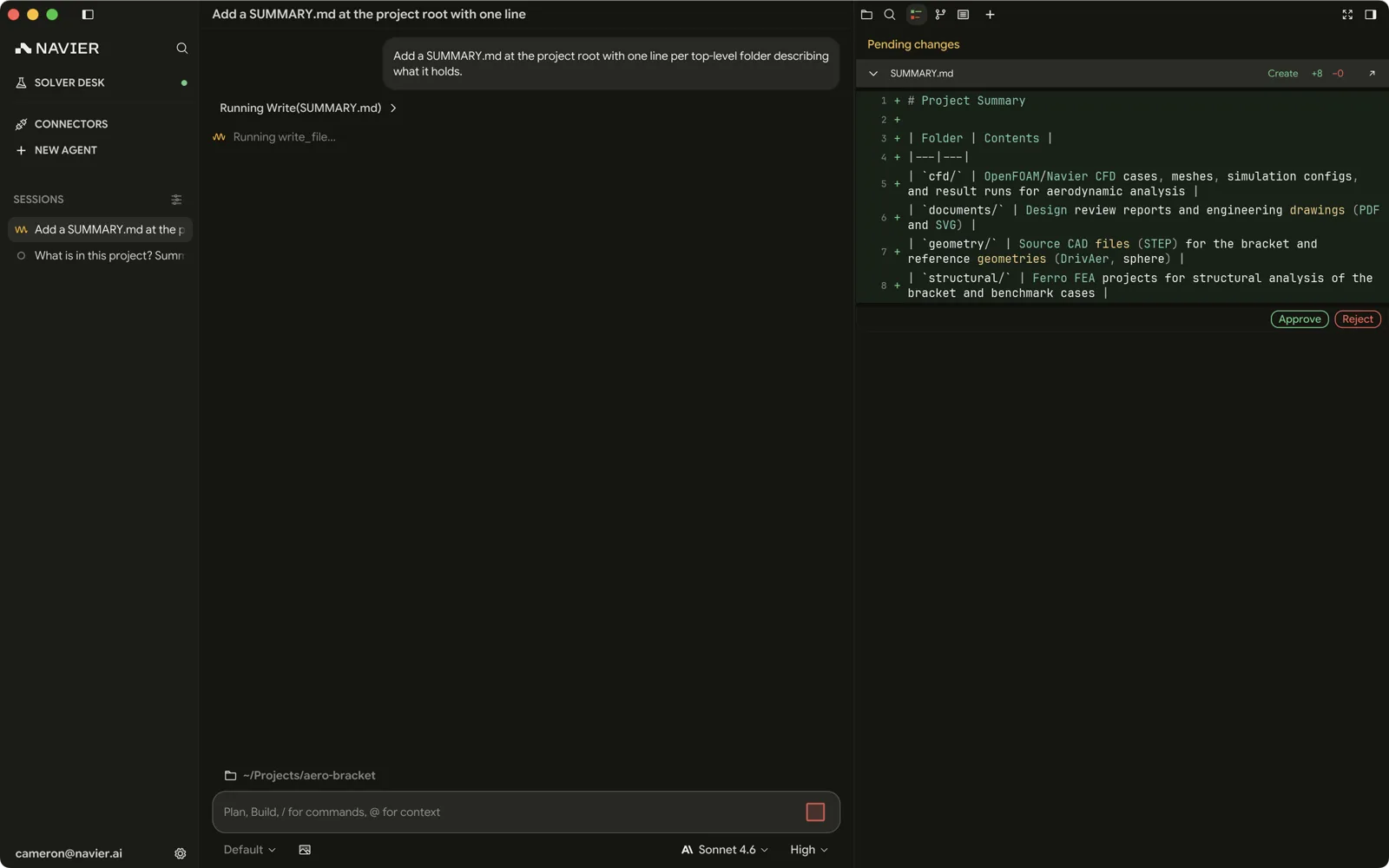
Read the diff before you accept the result. This is the point of running the agent locally against files you own: nothing is hidden behind a submit button.
6. Keep going, or start clean
- ⌘N / Ctrl+N starts a new thread in the same workspace.
- The threads sidebar on the left keeps your history; click any thread to return to it with its full transcript.
Long sessions drift. When you change subject — different part, different analysis, different question — start a new thread rather than continuing the old one. Threads are cheap and a focused transcript produces better work.
Where to go next
| If you want to | Read |
|---|---|
| Understand every panel in the window | Interface Tour |
| Work on a repo without dirtying your checkout | Reviewing Changes |
| Run a third-party solver | Solver Desk |
| Set up a structural case properly | Structural Cases |
| Write prompts that work the first time | Prompting Guide |