Settings Reference
⌘, / Ctrl+, opens Settings. The categories are listed where the threads sidebar usually is, and there is a search box — every control on this page is findable by name or by synonym, so "dark mode" finds Theme and "spacemouse" finds 3D mouse. The same pages and controls are searchable from the command palette without opening Settings first — they appear there as Settings: … rows.
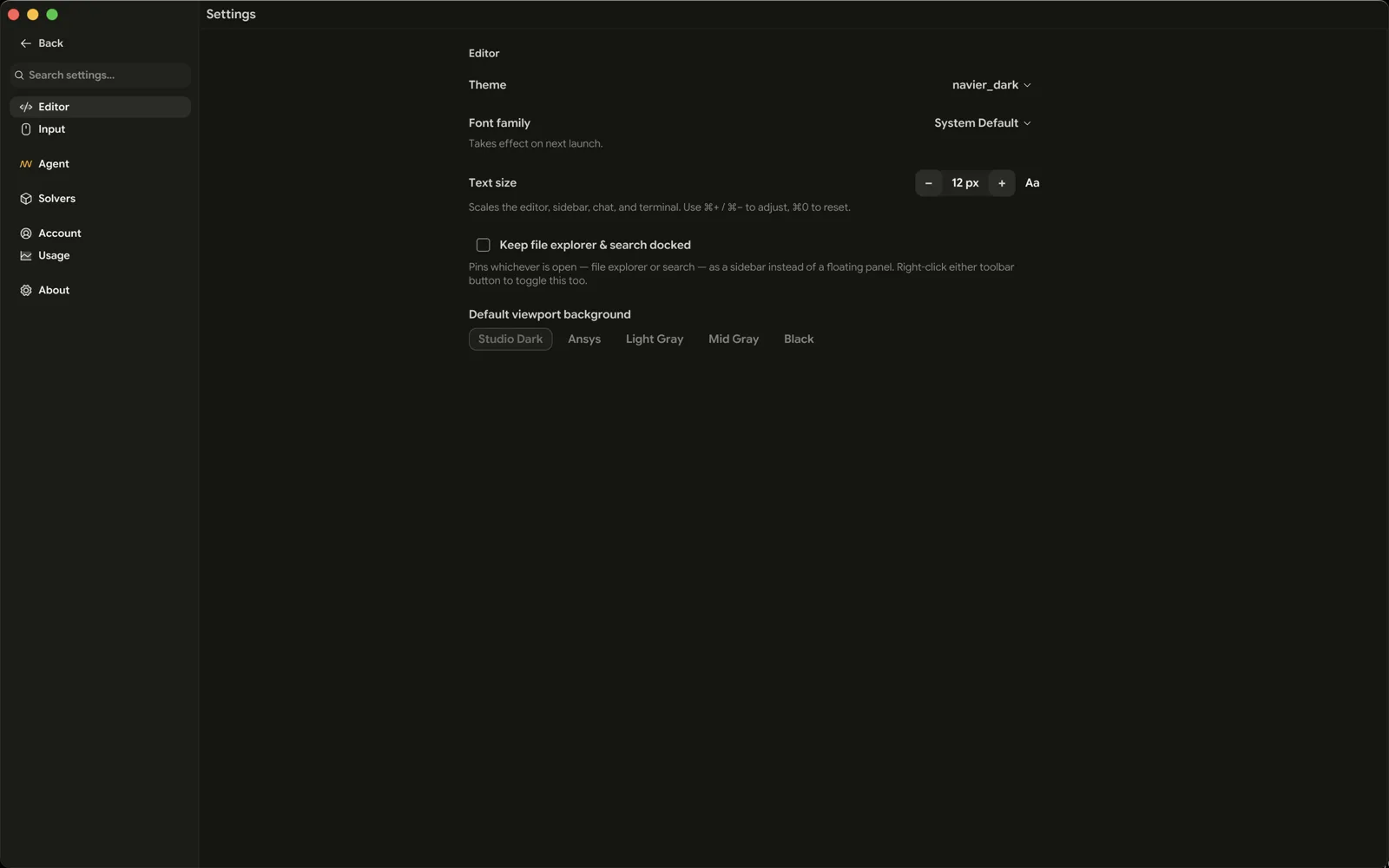
Categories are grouped: Editor and Input, then Agent, then Solvers and Local tools, then Account, Subscription and Usage, then About.
Editor
Appearance and editor behaviour.
| Setting | What it does |
|---|---|
| Theme | Editor and UI theme. Nine ship in the box, from Navier Dark to Rosé Pine. Also switchable from the command palette. |
| App icon | The icon Prism shows in the Dock or taskbar while it runs — the Navier mark by default, or one of two crystal tetrahedra. The installed app icon is unchanged. |
| Font family | The editor typeface. System Default uses your platform's default monospace font. |
| Text size | Editor text size. ⌘+, ⌘−, and ⌘0 also change it. |
| Keep file explorer & search docked | Off by default — the explorer and search open as a floating panel. On, they hold a column of their own in the right pane on the chat, and their shortcuts bring that pane up to show it. |
| Default viewport background | Which of the six backgrounds the 3D viewports use. Same setting as the viewport's own Background picker. See 3D Viewport. |
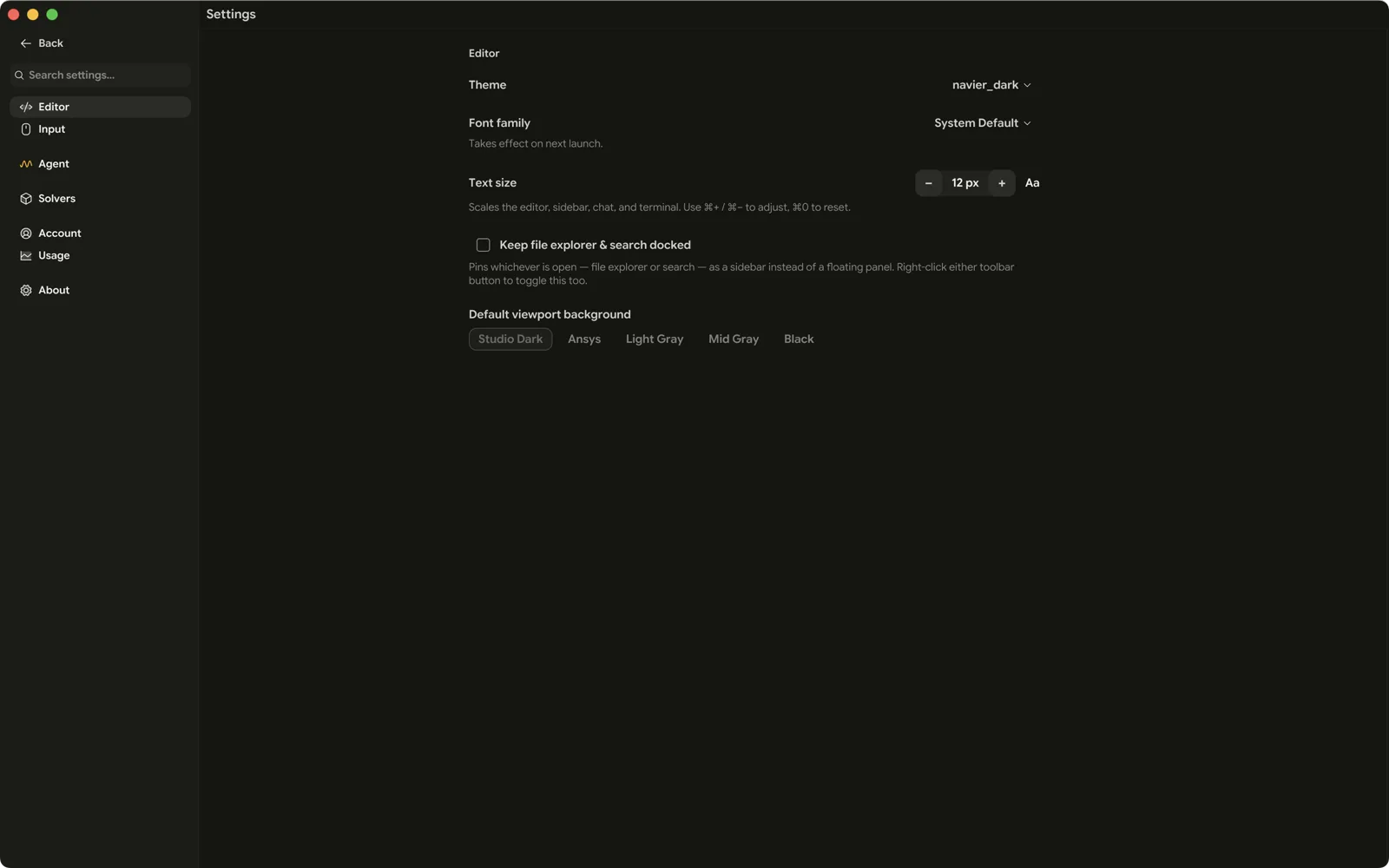
Input
| Setting | What it does |
|---|---|
| 3D mouse | Whether a 3Dconnexion SpaceMouse drives the viewport camera. On by default; needs the 3DxWare driver installed. |
Agent
Everything about how the agent behaves.
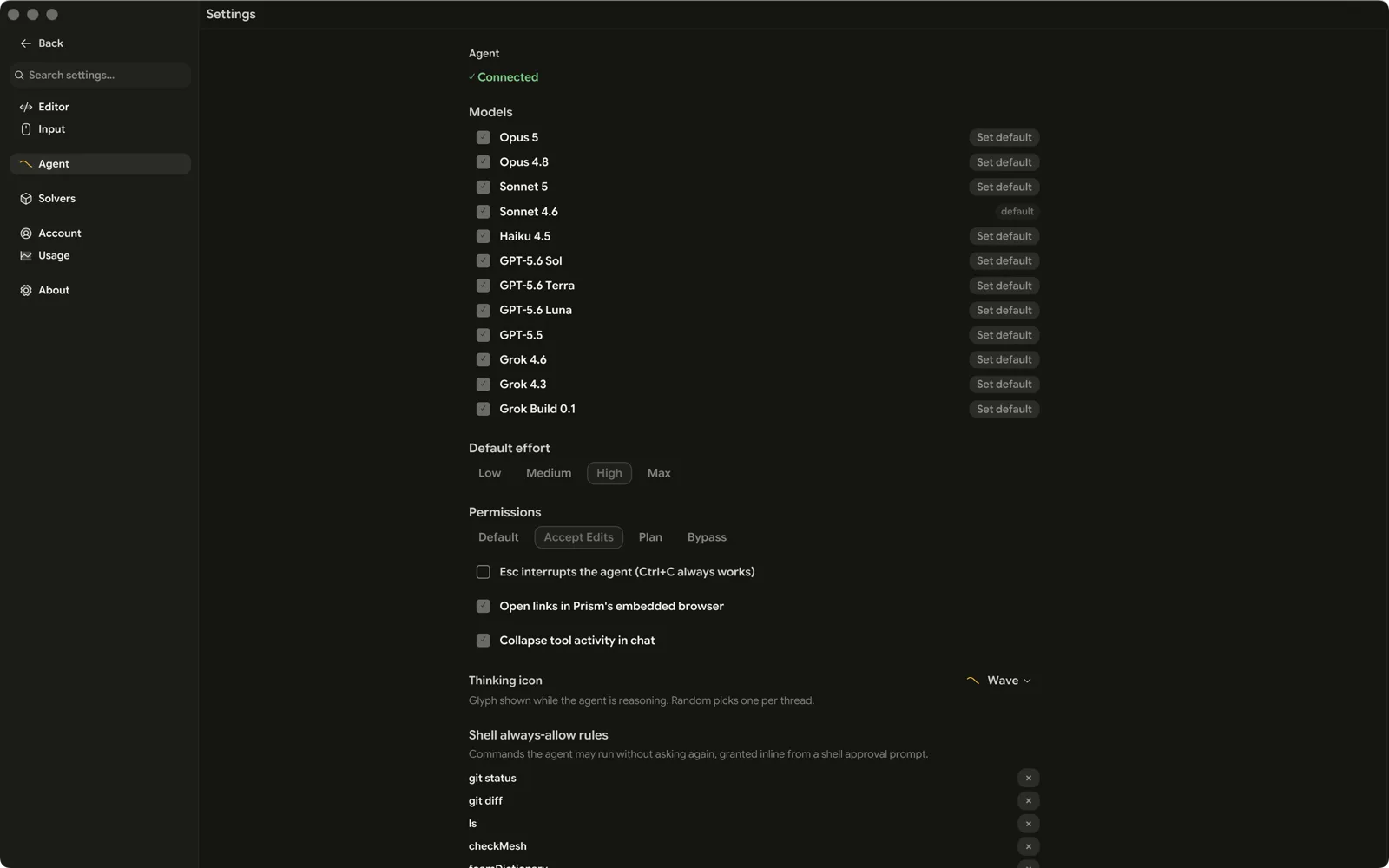
Connection
| Setting | What it does |
|---|---|
| Agent connection status | Whether Prism is connected to the backend. |
Models
| Setting | What it does |
|---|---|
| Models | Which models appear in the composer's picker, and which is the default. Enable the ones you use; leave the list empty to show all available models. |
| Default effort | The reasoning-effort level a new turn starts on. Effort ladders differ per model, so this resolves against whichever model is active. |
Permissions
| Setting | What it does |
|---|---|
| Permission mode | Bypass, Manual, Accept Edits, or Plan. New installs start on Accept Edits. ⇧Tab cycles it from the composer. |
| Shell always-allow rules | The shell allowlist. Rules match on an argv prefix and never match a command containing shell metacharacters. |
Chat behaviour
| Setting | What it does |
|---|---|
| Esc interrupts the agent | Off by default. On, Esc stops a streaming response, a pending question included. ⌃C always does, either way. |
| Collapse tool activity in chat | On by default. A run of uninterrupted tool calls collapses behind one expandable row. Off renders every row inline. |
| Thinking icon | The glyph style used for the agent's thinking rows. |
| Open links in Prism's embedded browser | On by default. Off sends the agent's links to your system browser instead. |
Solvers
How navier-solverd runs. See Solver Desk.
| Setting | What it does |
|---|---|
| Solver runtimes | Which runtimes are installed, and what the daemon supports |
| Core budget override | Cores the daemon commits to solvers, replacing its auto-detected default |
| Idle shutdown override | Minutes with no runs and no requests before the daemon exits |
| Custom runtime catalog | Path to a JSON file of extra or override runtime descriptors |
| Port override | The port the daemon binds, replacing its default |
All four overrides take effect on the daemon's next start. It reads them once at startup and does not hot-reload.
This page also lists the built-in capabilities — the physics compiled into Prism itself, currently Ferro — with the versions of the crates behind them.
Local tools
The programs Prism relies on but does not bundle: Docker, Gmsh, LibreOffice, Typst, Node.js, and the Pyright, TypeScript and rust-analyzer language servers. One card each, with what Prism needs it for and whether it is installed.
Opening the category re-runs detection, and the settings search finds the category by tool name.
| Control | What it does |
|---|---|
| Tick box per tool | Which missing tools the next install covers |
| Install selected (n) | Installs the ticked ones, reporting progress on their rows |
| Cancel installs | While an install is running, stops the whole run |
| Check again | Re-detects, for a tool you installed yourself |
Installs run per tool, so one working does not stop you starting another.
These are the same cards as the Set up local tools screen on first launch, so this is where anything skipped there gets installed — and the only place it lives after that first launch. On Linux, the ones that need root are shown as commands to copy and run rather than installed for you. See Environment Setup.
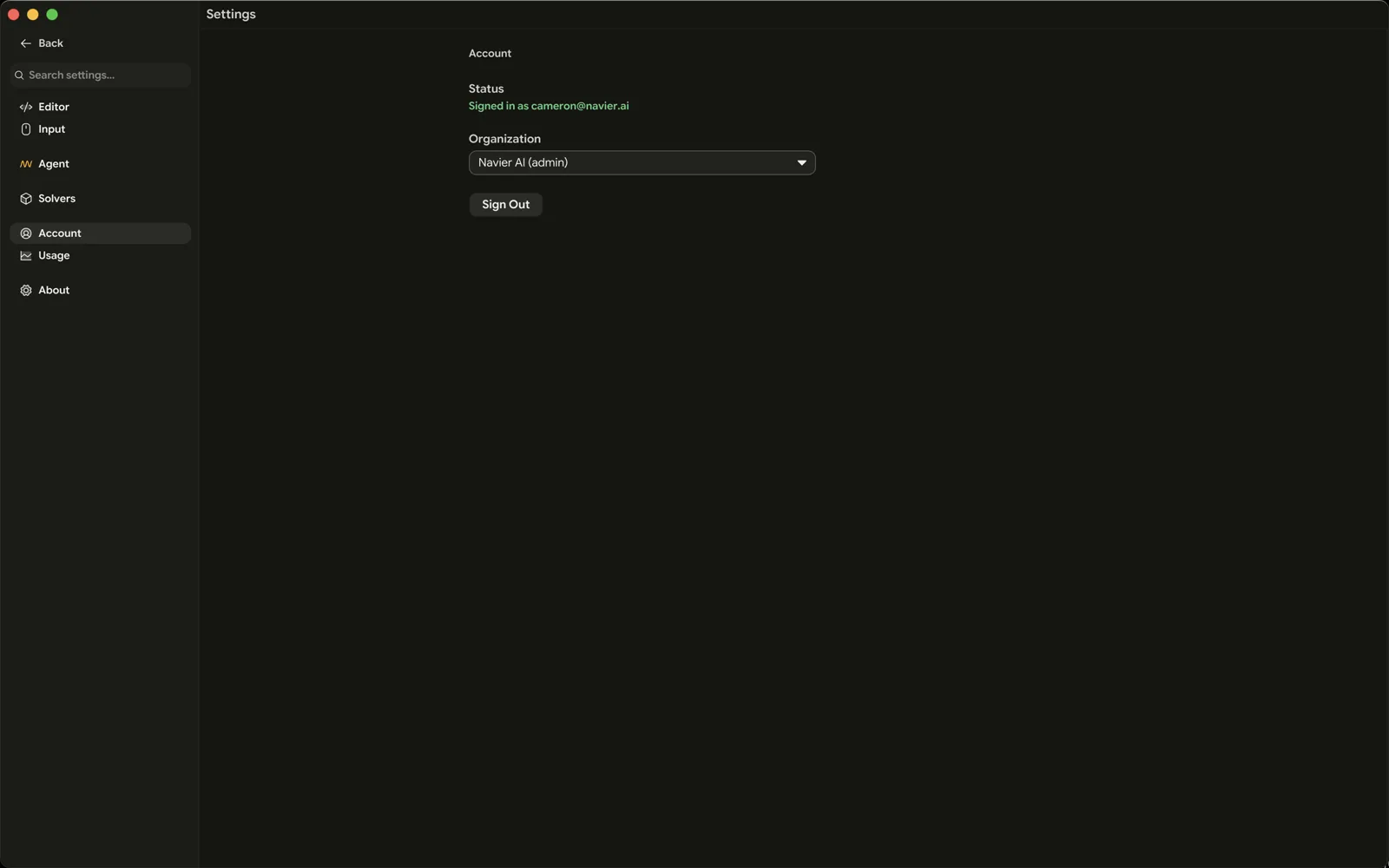
Account
| Setting | What it does |
|---|---|
| Sign out | Ends the session and returns the window to the sign-in gate. |
| Organization | Which organization you are working under, if your account belongs to more than one. Persisted and restored on the next sign-in while you are still a member. |
Subscription
What the organization is on, and what it has left to spend: the plan and its status, the LLM credits the plan includes, the purchased balance under Usage Credits, seats, and past invoices.
Buy credits is in the Usage Credits card — the one place on this page that sells them. Purchased credits are spent after the plan's included credits and do not expire. Only an organization admin sees the credit and seat controls; everyone else gets a line pointing them at their admin.
A purchase in flight shows a spinner until it settles. One left unfinished — a closed checkout window, a dropped connection — offers Retry purchase, or close the dialog and Refresh to check where it got to before starting another one.
A member carried over on the old view-only role reads View (legacy) and keeps that role until an admin changes it.
Usage
What your account has consumed: total tokens, input and output tokens, call count, and cost — over the last 7 or 30 days, the last 90 days, or the last year. Organization admins can switch between their own usage and the whole team's.
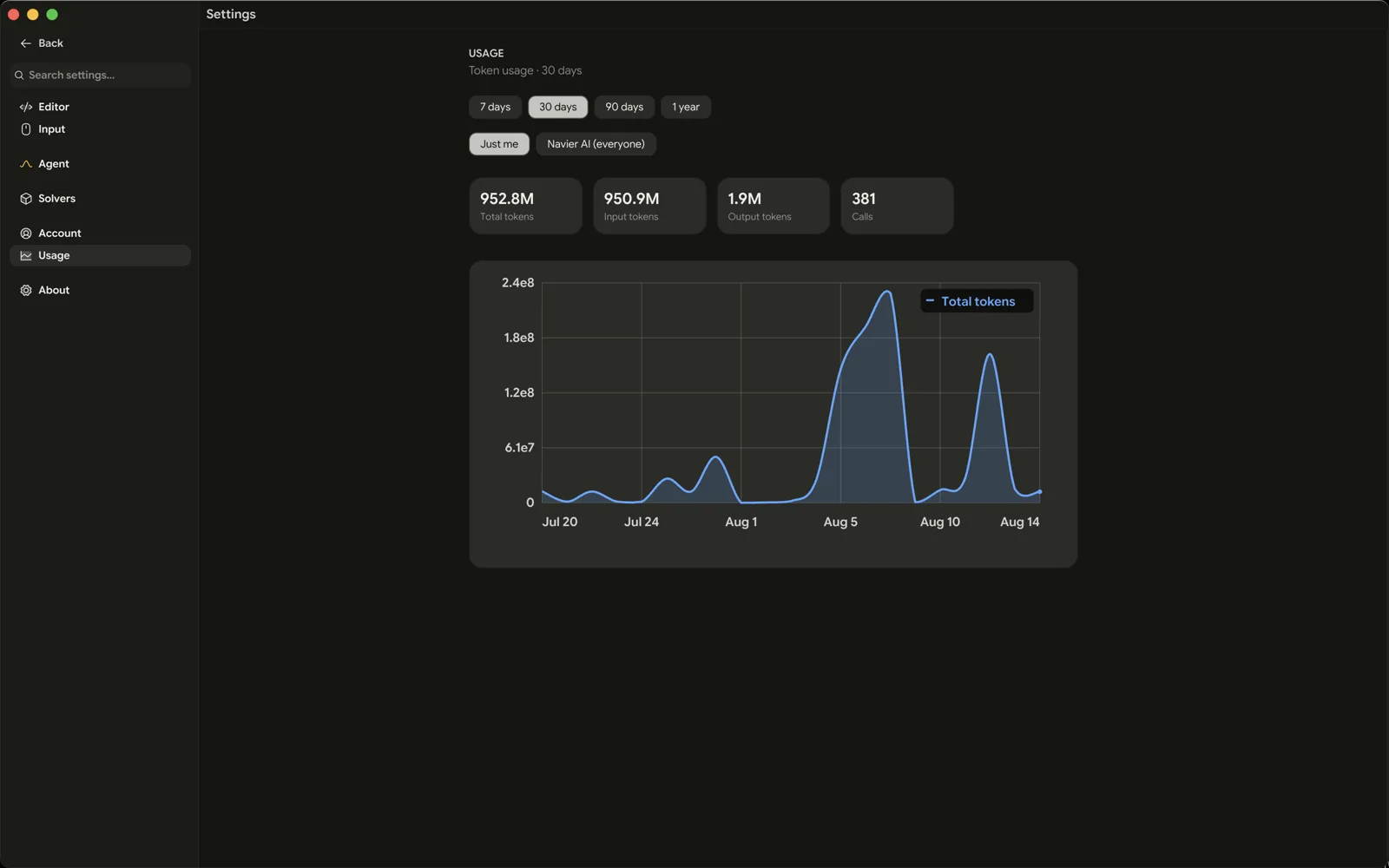
The chart stacks each day's tokens by model, so the split between models is read from the bars rather than inferred from a total — hover a day for that day's per-model breakdown. Below it, Usage by model ranks every model the period touched, largest consumer first, in the same colours as the stack.
Useful for calibrating effort settings — a high-effort session on a large codebase costs materially more than a low-effort one, and this is where you see by how much. It is also where a model that is quietly expensive shows up: the ranking sorts by tokens, and the cost beside each row is what that choice actually cost.
About
| Setting | What it does |
|---|---|
| App version & release channel | Which version and channel this build is |
| Updates | Checks the release manifest, then downloads and installs a newer build |
| Bundled tools | Every helper binary Prism resolved at startup, and whether it was found |
Updates
Updates are a section of About rather than a category of their own. The primary button follows the state: Check for updates when nothing is pending, Update now once one is available, Install & restart once it has downloaded, Retry download if it failed. Command palette → Check for Updates does the same check.
macOS and Linux replace files in place; Windows runs the downloaded MSI. Builds are on either the stable or dev channel, fixed at build time — a dev build only updates to dev builds.
The bundled-tools list is the first place to look when a feature is
unavailable: PDF rendering needs PDFium, CAD meshing needs mesher, the Solver
Desk needs navier-solverd, and gmsh is deliberately not shipped (it is
GPL-licensed) — Local tools is where you install it.
The licence agreement is also viewable from here.
Where settings live
Preferences persist across restarts in your platform's config directory, alongside the client skills:
<config>/prism/
├── skills/          ← client-side agent skills
├── plugins/         ← one folder per plugin
├── plugin-data/     ← what each plugin writes
└── …
Window size, panel widths, the right-pane split fraction, the active organization, and the accepted licence version are all persisted the same way, so a restart puts the app back the way you left it.